How to Compress a PDF Without Losing Quality (2026 Guide)
Attachment too large? Here is exactly what makes a PDF heavy, which compression settings actually matter, and how to cut file size by 60–90% without visible quality loss.
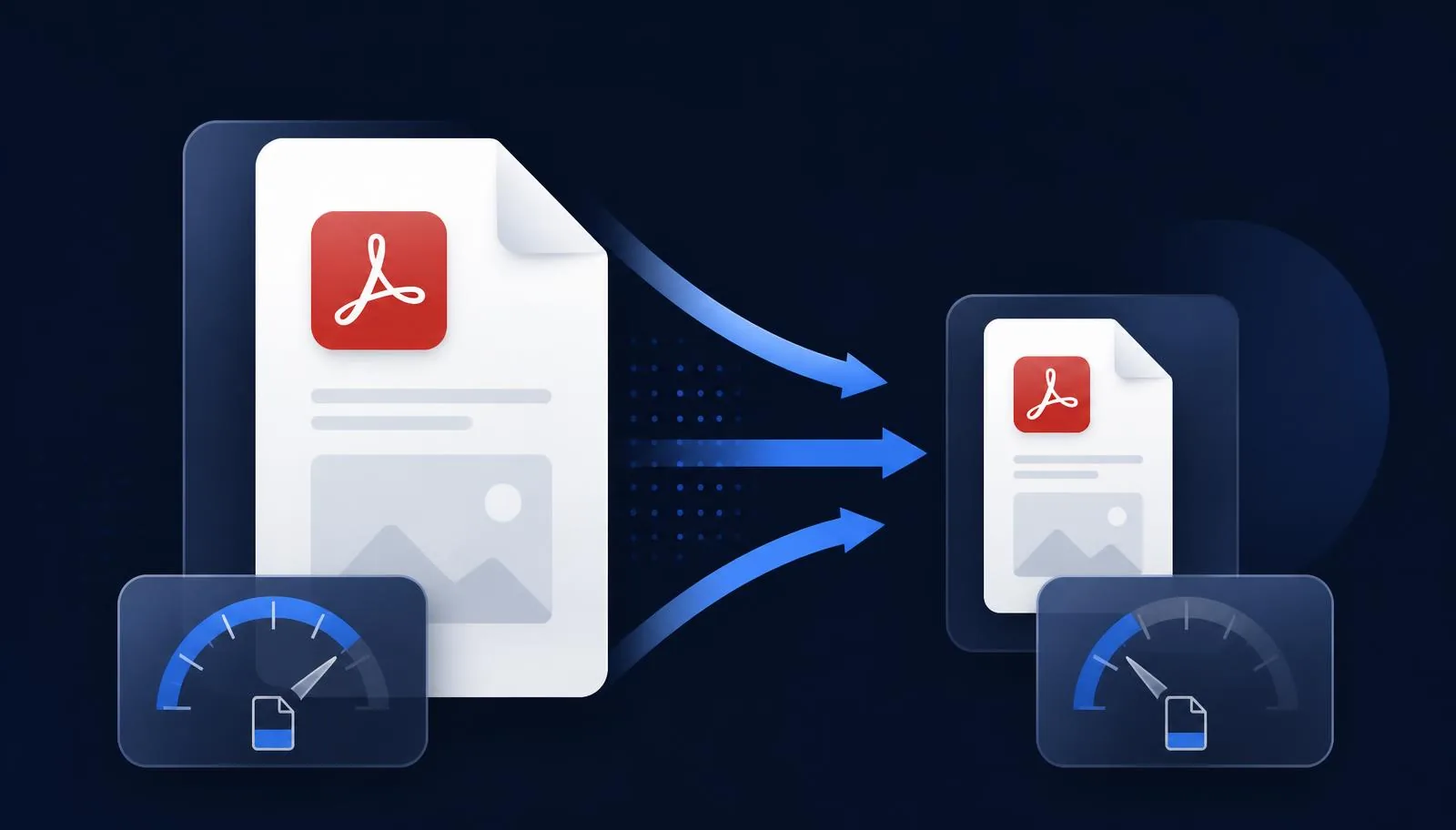
You finish a report, hit send, and the email bounces back: attachment too large. Or the university portal refuses your 40 MB scanned assignment. Or your client cannot open the brochure on mobile data because it takes two minutes to load.
The obvious fix is to compress the PDF. The problem is that most compressors treat compression as a blunt instrument: they crush every image to the same low quality, flatten your text into a blurry picture, and hand back a file that is small and unusable. You save 8 MB and lose the ability to select text, search the document, or print it cleanly.
It does not have to work that way. A PDF is a container of very different kinds of data, and each kind shrinks in a different way. Once you understand what is actually making your file heavy, you can remove 60–90% of the weight and keep the document looking identical on screen and in print.
This 2026 guide explains what is inside a bloated PDF, how compression really works, and how to compress a PDF without losing quality using NovaDocs AI Compress PDF. You will get a step-by-step walkthrough, target sizes for common situations, a comparison table, fixes for the most common compression problems, and answers to the questions people ask most.
What PDF compression actually does
A PDF is not one thing. It is a package that can hold positioned text with embedded fonts, raster images, vector artwork, metadata, form fields, annotations, attachments, colour profiles and revision history. Compression is the process of making each of those parts smaller, or removing the parts you do not need.
There are two fundamentally different families of technique, and the difference is the whole story.
- Lossless compression rewrites the data more efficiently without discarding anything. Duplicate images are stored once, unused font glyphs are dropped, object streams are packed, and stale revisions are removed. The rendered page is bit-for-bit identical. There is no quality cost at all.
- Lossy compression permanently discards information a viewer is unlikely to notice — mainly by lowering image resolution and re-encoding photos at a lower JPEG quality. This is where real savings live for scanned and image-heavy files, and also where bad tools ruin documents.
Compressing well means applying every lossless technique first, then applying lossy techniques only to the objects that can tolerate them, at a strength matched to how the file will be used. A photo destined for a screen does not need 600 DPI. A contract clause does need to stay crisp.
The single most important rule: never let a compressor rasterise your text. If text is converted to an image, you lose selection, search, copy, accessibility and screen-reader support, and the file often gets bigger, not smaller.
Why your PDF is so large in the first place
Before you compress anything, it helps to know where the megabytes are hiding. In practice, almost every oversized PDF is explained by one of the five causes below.
High-resolution scans
This is the number one cause. A page scanned at 600 DPI in full colour produces roughly 35 million pixels. Stored as a lightly compressed image, that is 3–6 MB per page, so a 20-page scanned contract easily reaches 80 MB.
The irony is that the extra resolution carries no extra information. Printed text scanned at 300 DPI is already sharper than any screen can display, and greyscale is usually enough for a black-ink document. Downsampling a scan to 200–300 DPI and converting it to greyscale routinely cuts 80% of the file with no visible difference.
Uncompressed or oversized images
Design and marketing files are often exported with print-grade images left at full size. A 4000-pixel-wide product photo placed into a box 6 cm across still stores all 4000 pixels. Screenshots saved as PNG are another common offender: PNG is lossless, so a full-page screenshot can be several megabytes where a JPEG at quality 80 would be a few hundred kilobytes.
Embedded fonts and duplicated objects
PDFs embed the fonts they use so the document renders identically everywhere. That is good, but a file assembled from many sources can embed the same font family five times, or embed complete fonts when only a handful of glyphs are used. Merged documents frequently store the same logo image once per page.
Subsetting fonts and de-duplicating repeated objects is pure lossless gain — often 10–30% on business documents, with zero quality cost.
Hidden layers, revisions and metadata
Every time a PDF is edited and saved incrementally, the previous version can remain inside the file. Add unused form fields, invisible layers from the design tool, embedded colour profiles, thumbnails and XMP metadata blocks, and a simple two-page document can carry several megabytes of material nobody will ever see.
A worthwhile side effect: stripping this material also removes hidden revision history, which is a genuine privacy improvement before you send a file externally.
Too many pages in one file
Sometimes the file is not bloated, it is simply long. If you only need chapter three, compression is the wrong tool — use Extract Pages or Split PDF to send just what the recipient needs, then compress the result.
How NovaDocs AI compresses without visible quality loss
NovaDocs AI Compress PDF runs an ordered pipeline rather than a single quality slider. Each stage is applied only where it is safe.
- Inspect the file. Every object is measured so the tool knows whether the weight is in scans, photos, fonts or hidden data. A text-heavy contract and a photo brochure need opposite treatments.
- Apply lossless gains first. Duplicate images and repeated objects are stored once, fonts are subsetted to the glyphs actually used, object streams are re-packed, and stale revisions, unused form fields and redundant metadata are dropped.
- Downsample images intelligently. Each image is resampled to the resolution it is actually displayed at, with a floor that keeps print output sharp — never a single global setting applied blindly to the whole document.
- Re-encode photographs, not text. Continuous-tone images are re-encoded at a perceptual quality level; line art, logos and screenshots stay in a lossless encoding where JPEG artefacts would be obvious.
- Keep the text layer intact. Text remains real, selectable, searchable text with its original fonts, so the document stays accessible and print-crisp at any zoom level.
- Verify the result. If a setting would produce a visibly degraded page, the pipeline backs off rather than shipping a broken file.
What is preserved: page dimensions, text and fonts, vector graphics, hyperlinks, bookmarks, form fields you still need, and the reading order that screen readers depend on. What is removed: hidden revisions, duplicated objects, surplus pixels and metadata nobody reads.
Everything runs in your browser session and files are not kept afterwards, which matters when the document is a contract, a medical record or an academic submission.
Step-by-step: compress a PDF in under a minute
- Step 1 — Open the tool. Go to Compress PDF in any modern browser on desktop, tablet or phone. There is nothing to install and no watermark.
- Step 2 — Add your file. Drag the PDF into the upload panel or tap to browse. The original file size is shown so you have a baseline to compare against.
- Step 3 — Choose a compression level. Use a lighter level for documents that will be printed or archived, and a stronger level for email attachments and web uploads. See the target table below if you are unsure.
- Step 4 — Compress and review. Run the compression, check the new size and the percentage saved, then open the result and scan the pages that matter most — a page with a photo, a page with small print, and any page with a table.
- Step 5 — Download and, if needed, iterate. If the file is still too big, apply a stronger level or remove pages you do not need first; if quality slipped anywhere, step back one level and run it again.
A practical habit: compress last. Merge, rotate, sign or watermark first, then compress once at the end. Compressing repeatedly through several rounds of edits stacks lossy passes on top of each other and is the fastest way to degrade a document.
What size should you actually target?
Compression is not about getting the smallest possible number. It is about comfortably clearing the limit that is blocking you, with quality to spare.
| Use case | Practical limit | Suggested level | What to protect |
|---|---|---|---|
| Email attachment | Under 10 MB, ideally under 5 MB | Strong | Readable text; photos can soften slightly |
| Job or university application portal | Usually 2–5 MB | Strong, plus remove blank pages | Legibility of scanned certificates |
| Website or download link | Under 2 MB per document | Strong, images at screen resolution | Fast first render on mobile data |
| Client-facing proposal | 5–15 MB | Balanced | Logos, brand colours, chart sharpness |
| Professional printing | Size is secondary | Light or lossless only | 300 DPI images and vector artwork |
| Long-term archive | As small as lossless allows | Lossless only | Full fidelity and the text layer |
If a portal rejects your file even after strong compression, the file is usually a very high-resolution colour scan. Convert it to greyscale, or run it through OCR so the pages carry a real text layer, then compress again.
Benefits of compressing the right way
- Attachments actually send, instead of bouncing off mailbox limits.
- Pages load in a second on mobile data, which measurably reduces abandonment on downloadable brochures and price lists.
- Uploads to portals, CRMs and learning platforms stop failing halfway.
- Storage and bandwidth costs fall across shared drives and document archives.
- Hidden revision history and stale metadata are stripped, so you are not leaking earlier drafts.
- Text stays selectable and searchable, so the document remains accessible and usable by screen readers.
- Files stay comfortably printable because resolution is reduced to a sensible floor, not to nothing.
Common problems and how to fix them
The file barely got smaller
Your PDF is probably already efficient — a pure text document with subsetted fonts has very little left to remove. Check the page count instead and send only the pages needed via Split PDF, or accept that 400 KB is simply a well-built file.
Text looks blurry after compression
That means the text was rasterised, which is a sign of an aggressive tool or a document that was a scan to begin with. For scans, run OCR to add a real text layer before compressing; the recognised text stays crisp regardless of image quality.
Photos show blocky artefacts
You applied a strong level to a photo-heavy document. Step down one level. Gradients, skin tones and dark backgrounds are the first places JPEG artefacts appear, so check those pages when reviewing.
Scanned pages are still enormous
Colour scans of black-ink documents are the classic case. Rescan or convert to greyscale at 300 DPI, then compress. The saving is usually between 70% and 90%.
The compressed file will not open
Almost always an encrypted or password-protected source file. Remove protection first with Unlock PDF, compress, then re-apply protection with Protect PDF.
Form fields stopped working
Some compressors flatten interactive forms. If you still need a fillable document, keep the form version as the master and share the compressed copy for reading only, or complete it first with Fill PDF Form.
NovaDocs AI vs other PDF compressors
| Capability | NovaDocs AI | Typical free compressor | Desktop PDF suite |
|---|---|---|---|
| Keeps text selectable | Always | Often rasterises text | Yes |
| Per-image downsampling | Yes, per object | One global setting | Yes, manual setup |
| Lossless pass before lossy | Yes | Rarely | Yes |
| Removes hidden revisions | Yes | No | Yes |
| Watermark on output | None | Common on free tiers | None |
| Installation required | No, runs in the browser | No | Yes, paid licence |
| Files retained after use | No | Varies, often stored | Local only |
| AI tools on the same file | Summarise, translate, chat, study | None | Limited |
| Price | Free | Free with limits | Subscription |
The honest trade-off: a desktop suite gives you fine-grained manual control over every compression parameter, which specialists sometimes need. NovaDocs AI is built for everyone else — sensible decisions made automatically, in the browser, in seconds, and connected to the rest of your document workflow.
Where compression fits in a full document workflow
Compression is rarely the only step. A typical real-world sequence looks like this: combine the parts with Merge PDF, drop the pages nobody needs with Remove Pages, fix orientation with Rotate PDF, add a signature with Sign PDF, then compress once at the end.
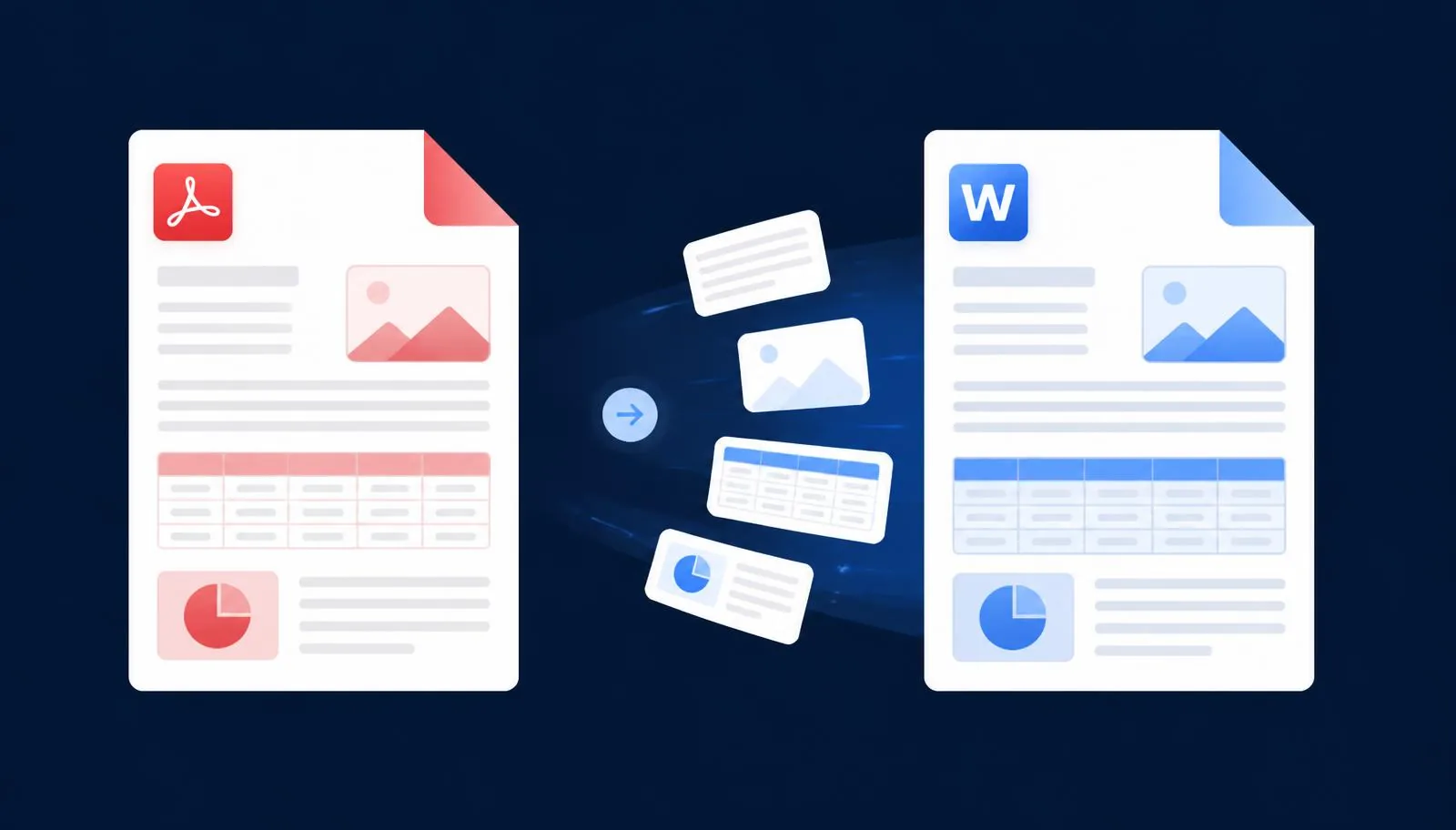
If you need to work with the content rather than the file, the same document can go straight into Chat with PDF to ask questions, AI Summarizer for an executive summary, AI Translator for another language, or the AI Study Assistant to generate notes, quizzes and flashcards. Editing rather than reading? PDF to Word rebuilds an editable document with the layout intact.
For deeper background on the specification itself, the PDF Association publishes accessible explanations of how PDF objects, fonts and image encodings work.
Frequently Asked Questions
- Does compressing a PDF reduce its quality?
- It depends on the method. Lossless techniques — de-duplicating objects, subsetting fonts, stripping hidden revisions — reduce size with no quality change at all. Lossy techniques reduce image resolution and can be invisible when applied sensibly, or obvious when applied bluntly. NovaDocs AI applies lossless gains first and keeps the text layer intact, so a balanced compression is normally indistinguishable on screen.
- How much smaller can a PDF get?
- Text-only documents that are already efficient may shrink 10–30%. Business documents with logos and charts typically drop 40–70%. High-resolution colour scans routinely fall by 80–90%, because that is where the wasted data lives.
- Will the text stay selectable and searchable?
- Yes. NovaDocs AI never rasterises a real text layer. Text stays selectable, searchable, copyable and readable by screen readers after compression.
- Is it safe to compress confidential documents?
- Compression runs in your browser session and files are not retained afterwards. It also strips hidden revision history and stale metadata, which makes the outgoing file safer than the original.
- Can I compress a password-protected PDF?
- Not directly — the content is encrypted. Remove the password with Unlock PDF first, compress, then re-apply protection using Protect PDF.
- Why is my compressed file still too big for email?
- Either the document is very long, or it is a high-resolution colour scan. Send fewer pages with Split PDF, or convert scans to greyscale before compressing. For anything above roughly 20 MB, a share link is more reliable than an attachment.
- Can I compress the same PDF twice?
- You can, but you should not make a habit of it. Each lossy pass discards information permanently, so repeated rounds visibly degrade images. Compress once, at the end of your editing workflow.
- Does compression change page size or layout?
- No. Page dimensions, margins, text position and vector graphics are unchanged. Only the stored data is reorganised, so the document looks the same and prints at the same size.
- Which level should I choose for printing?
- Use the lightest level, or lossless only. Print output benefits from image resolution that screens cannot show, so protect it if the file is going to a professional printer.
- Is NovaDocs AI Compress PDF free?
- Yes. Compression is free to use in the browser, with no installation, no watermark on the output and no signup wall for basic use.
- Can I compress a PDF on my phone?
- Yes. The tool runs in a mobile browser, so you can shrink a file and attach it without installing an app.
- Is there a file size limit?
- Compression runs on your device, so the limit is practical rather than fixed — very large scanned files simply take a little longer.
When compression is not the right fix
Compression shrinks what is inside the file; it cannot solve every size problem. If a 400-page report is still too heavy after a strong pass, split it with Extract pages and send the relevant chapter. If the file is large because it holds dozens of full-page scans, run OCR and share the text version instead.
Also skip compression for artwork heading to a commercial printer, and for archival masters you may need to re-edit later — keep the original and compress only the copy you send.
Conclusion: small file, same document
Compressing a PDF without losing quality is not a trick or a lucky setting. It is a sequence: find out where the weight actually is, take every lossless saving first, downsample only the images that can spare the pixels, and never touch the text layer.
Do that and a 40 MB scan becomes a 3 MB attachment that still prints cleanly, still lets you search for a clause, and still works with a screen reader.
Ready to shrink your file? Run it through Compress PDF — free, in your browser, no watermark — then keep working with the same document using Chat with PDF, AI Summarizer, AI Translator and the AI Study Assistant.
Ready to try it yourself?
All the PDF & AI tools mentioned in this article — free to use.
Related articles

Get weekly PDF & AI tips
Join thousands of students and professionals getting productivity tips in their inbox.