How to Edit PDF Files Online for Free (2026 Complete Guide)
Editing a PDF should take two minutes, not an afternoon of trial software. Here is the free browser workflow that covers text edits, signatures, page surgery and scans.

Almost everyone hits the same wall at some point. A signed lease, an invoice with the wrong date, a scanned form that needs one box ticked — and the file is a PDF. The format was designed to look identical everywhere, which is exactly what makes it feel locked.
It is not locked. In 2026 you can do nearly everything a desktop PDF editor does directly in a browser tab: correct text, add a signature, drop in an image, reorder or delete pages, merge two contracts into one, shrink a file for email, and pull a scanned page back into editable words.
This guide walks through how PDF editing actually works, which method fits which job, and a step-by-step routine you can run today for free. Every tool mentioned is part of NovaDocs AI, and none of them require an install, a licence key or a watermark you have to pay to remove.
We have written it in the order people actually work: understand the file, pick the right tool, edit, verify, export. Skip ahead using the table of contents if you already know what you need.
What editing a PDF really means
A PDF is not a document in the way a Word file is. It is a set of drawing instructions: place this glyph at these coordinates, draw this line here, paint this image there. There are no paragraphs that reflow and, in most files, no concept of a heading or a table.
That single fact explains every quirk you will meet. When you type a new sentence into a PDF, nothing below it moves down. When you delete a word, the gap stays. Editors work around this by placing new content on top of the page or by rebuilding the page structure entirely.
So "editing a PDF" is really four different jobs, and knowing which one you are doing saves an enormous amount of time.
1. Annotation and overlay edits
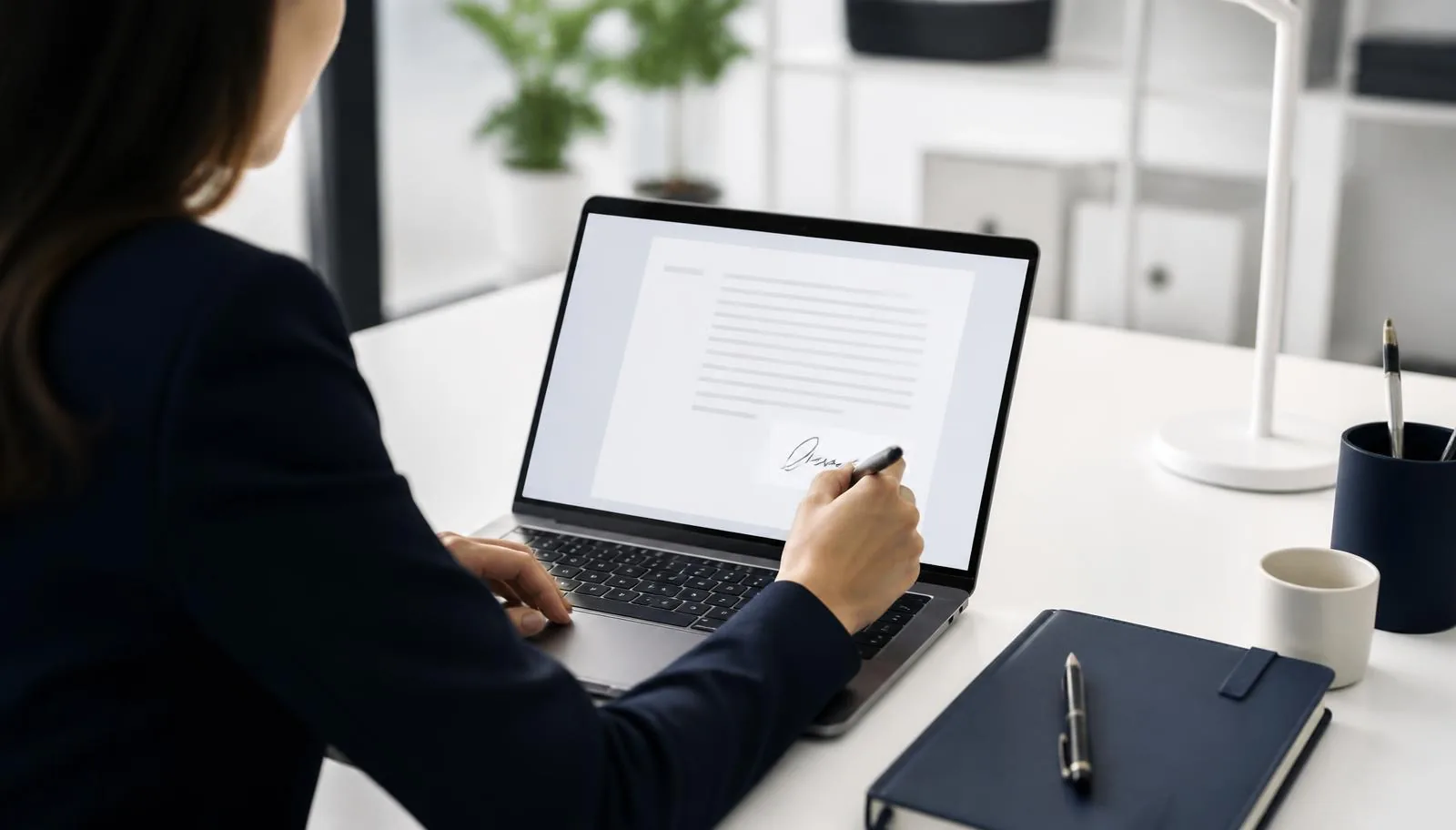
Adding a signature, a date, a stamp, a highlight, an initial in a box. The original page is untouched and your content sits on top. Fast, safe, and the right choice for contracts and forms — use Fill & Sign PDF.
2. Page-level edits
Removing an appendix, reordering chapters, rotating a sideways scan, splitting a 200-page report into sections, or combining several files into one. Nothing inside the pages changes — only which pages exist and in what order. Merge PDF and Split PDF cover most of this.
3. True text edits
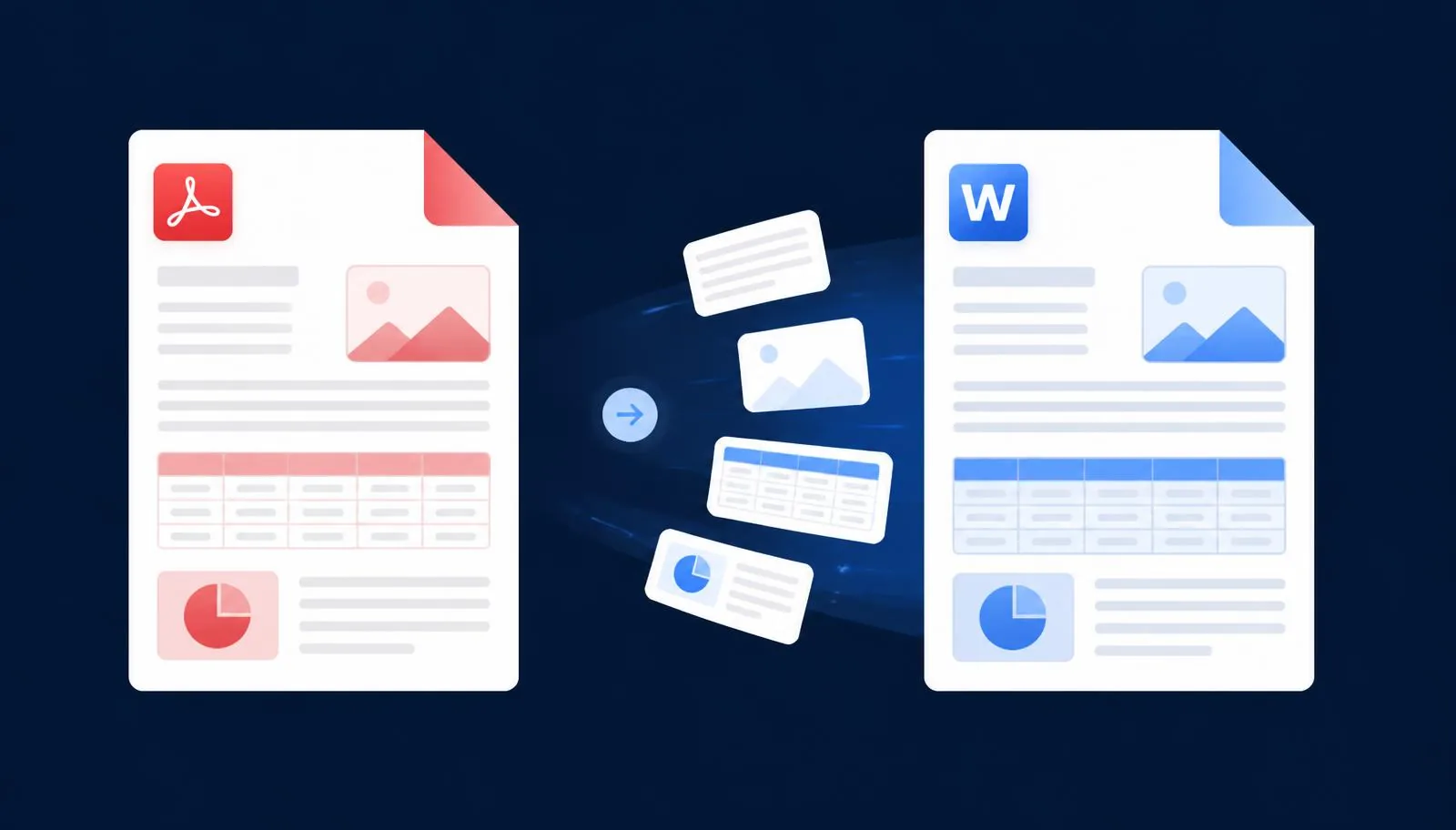
Rewriting a paragraph, fixing a price, updating a clause. For anything longer than a few words, the reliable route is to convert the file into an editable format with PDF to Word, edit normally, then publish it back with Word to PDF. You keep the layout and gain a real word processor.
4. Scanned-document edits
If the page is a photograph of text, there is nothing to edit until the characters are recognised. Run it through OCR first; you then have selectable, searchable text and can continue with any of the methods above.
Step-by-step: edit a PDF online for free
Here is the routine we use daily. It takes a couple of minutes and works on a laptop or a phone, because everything runs in the browser.
- Open the file and identify what kind of PDF it is. Try selecting a line of text with your cursor. If the text highlights, it is a real text PDF. If nothing highlights, it is a scan and you should start with OCR.
- Pick the tool that matches the job. Signature or form field: Fill & Sign. Page order or deletions: Merge or Split. Rewriting sentences: PDF to Word. Table of numbers: PDF to Excel.
- Upload the file to the relevant NovaDocs AI tool. Drag it onto the upload panel or tap to browse — the file name appears immediately so you know it registered.
- Make your edit and preview it before exporting. Check page order, check that the signature sits inside its box, and check that no content moved off the page edge.
- Export and clean up. Download the result, then run Compress PDF if you are emailing it, so the attachment goes through the first time.
A worked example. You receive a scanned supplier contract, page 4 has the wrong payment terms, and page 9 is upside down. You run OCR to make the text real, convert with PDF to Word, fix the clause, export back with Word to PDF, rotate page 9, sign the last page with Fill & Sign, and finish with Compress PDF. Total time: under five minutes, no software installed.
Choosing the right tool for the job
| What you need to do | Best tool | Why |
|---|---|---|
| Sign or initial a contract | Fill & Sign PDF | Overlay edit — original pages stay untouched |
| Rewrite paragraphs or clauses | PDF to Word, then Word to PDF | Gives you real text editing with layout intact |
| Combine several documents | Merge PDF | Single output file, page order preserved |
| Send only part of a report | Split PDF | Extract exactly the pages you need |
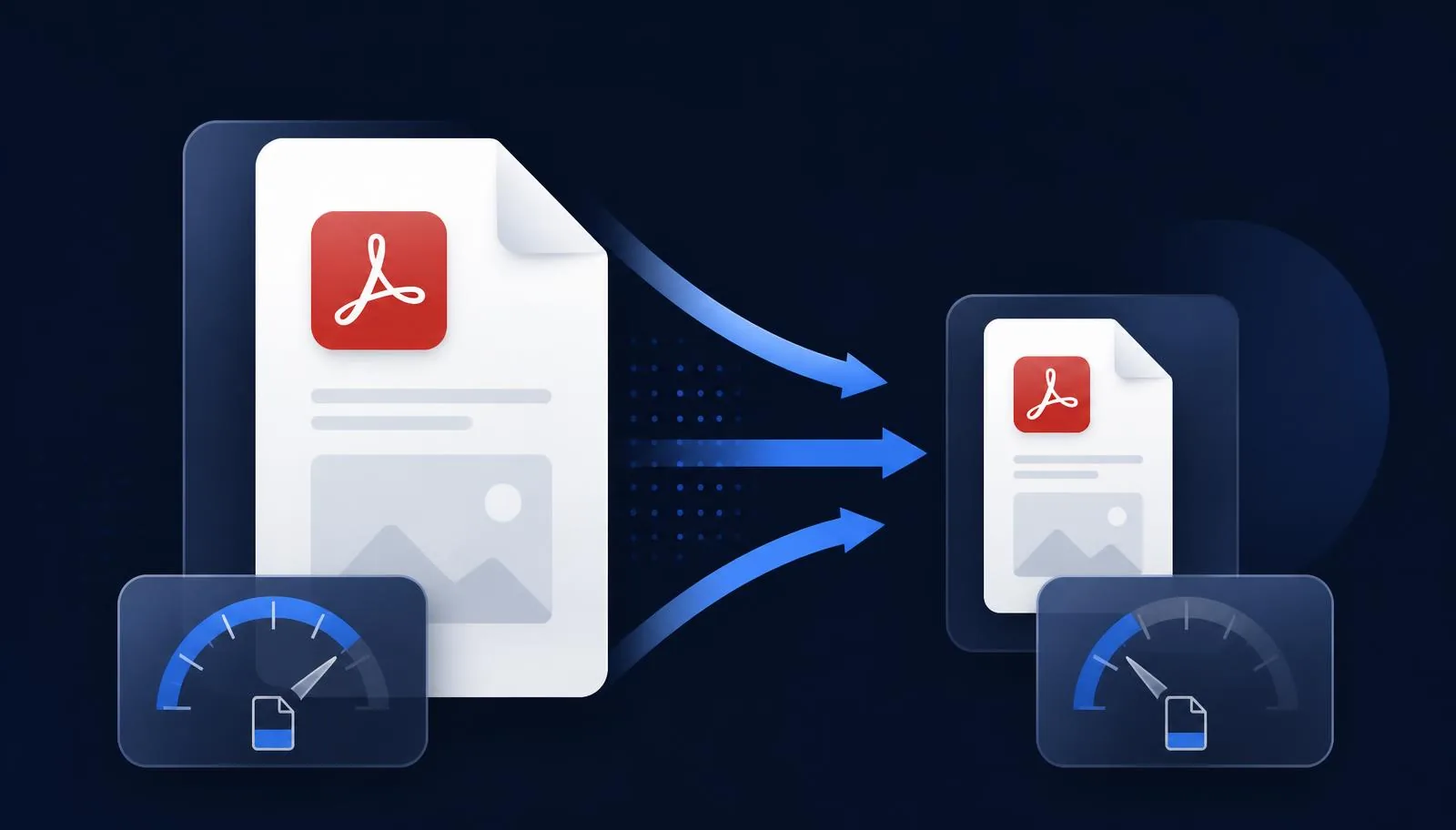
| Attachment rejected as too large | Compress PDF | Cuts size 40–90% without touching the text layer |
| Edit a scanned or photographed page | OCR | Turns pixels into selectable, searchable text |
| Pull figures into a spreadsheet | PDF to Excel | Rebuilds rows and columns instead of dumping text |
| Understand a long document fast | AI Summarizer or Chat with PDF | Find the clause before you edit it |
| Work with a document in another language | Translate Documents | Translates while keeping structure readable |
If you are not sure where the change needs to happen, open the file in Chat with PDF and ask where a term appears. It is far quicker than scrolling a 90-page agreement, and it tells you the page number before you start editing. Going the other way — a finished spreadsheet that needs to become a fixed-layout document — is a job for Excel to PDF.
Benefits of editing PDFs online
- No installation. Browser tools work on a work laptop where you cannot install software, and on a phone when you are away from your desk.
- No licence cost. The tasks that desktop suites charge a subscription for — signing, merging, converting, compressing — are free here.
- Cross-platform by default. Windows, macOS, Linux, iOS and Android all get the same result, because the work happens in the browser session.
- Faster for one-off jobs. Most edits are a single change on a single file; opening a heavy desktop application for that is overkill.
- Everything in one place. Conversion, OCR, signing, compression and AI reading sit side by side, so a multi-step job never means hunting for a second website.
- Less risk to the original. Overlay and page-level edits leave the source content intact, so a mistake is a re-upload, not a lost document.
The best PDF edit is the smallest one that solves the problem. Reach for conversion only when you genuinely need to rewrite text.
Common mistakes to avoid
Converting when you only needed to annotate
Round-tripping a document through Word to add one signature invites layout drift for no reason. If you are not changing sentences, do not convert.
Editing a scan without OCR
A converted scan with no text recognition produces a Word file containing one large picture. Run OCR first and the same conversion produces editable paragraphs.
Compressing before you finish editing
Each lossy compression pass discards image data permanently. Compress once, at the very end, or you will watch your logos soften with every round.
Forgetting the file is password protected
Encrypted content cannot be read by any editor. Remove protection with Unlock PDF first, edit, then re-apply it with Protect PDF before sending.
Assuming a visual redaction hides anything
Drawing a black rectangle over a name leaves the name in the file's text layer, where anyone can copy it out. Delete the page, or rebuild it properly before distributing.
Skipping the final read-through
Because PDF text does not reflow, an inserted sentence can overlap the line beneath it. Always scroll the exported file once before you send it.
Best practices for clean, professional results
- Keep the original. Save the untouched source file separately so you can always start over.
- Work in one direction. Convert, edit, export — do not bounce a file through several formats, because each hop is a chance for the layout to shift.
- Match the font before you type. If you are adding text over an existing page, use the same family and size so the insertion is invisible.
- Edit pages before content. Delete or reorder pages first; there is no point perfecting a paragraph on a page you are about to remove.
- Flatten forms before sending. A flattened form cannot be altered by the recipient, which matters for anything contractual.
- Name files meaningfully. contract-v3-signed.pdf saves more time later than document(4).pdf.
- Compress last, check first. Download, read it through, then compress for delivery.
For long or unfamiliar documents, add one more step at the start: run AI Summarizer to get the structure in thirty seconds, or Translate Documents if the source language is not yours. Students and researchers can go further with the AI Study Assistant, which turns the same file into notes, flashcards and quiz questions. Knowing what the document says before you edit it prevents most rework.
Security: what to check before you upload
Sensible caution is warranted with contracts, medical records and anything containing personal data. Three things are worth confirming with any online editor: that the connection is HTTPS, that files are not retained after your session, and that no account or email is required just to run a basic edit.
NovaDocs AI processes files within your session and does not keep them afterwards. For highly sensitive material, a good habit regardless of provider is to split out only the pages that need editing with Split PDF, edit those, then merge them back — the rest of the document never leaves your machine.
Frequently Asked Questions
Frequently Asked Questions
- Can I edit a PDF online for free without watermarks?
- Yes. NovaDocs AI tools export clean files with no watermark and no forced signup for basic editing, conversion, merging, splitting and compression.
- How do I edit text inside a PDF?
- For a word or two, an overlay edit is fine. For real rewriting, convert with PDF to Word, edit in your word processor, then export back using Word to PDF to keep the layout.
- Can I edit a scanned PDF?
- Not until the text is recognised. Run OCR first to turn the scan into selectable text, then edit or convert as normal.
- Do I need to install any software?
- No. Everything runs in a standard browser on Windows, macOS, Linux, Android and iOS. There is nothing to download and nothing to license.
- How do I sign a PDF online?
- Open Fill & Sign PDF, place your signature where it belongs, and export. The signature sits on top of the page, so the original content is unchanged.
- Can I delete or reorder pages?
- Yes. Use Remove Pages to delete them, Extract Pages to pull a selection into a new file, Reorder Pages to change the sequence, and Merge PDF to recombine everything in the order you want.
- Why did my file get bigger after editing?
- Added images and embedded fonts increase size, and some editors keep the old content alongside the new. Run Compress PDF once at the end to bring it back down.
- Can I edit a password-protected PDF?
- Only after removing the protection. Use Unlock PDF with the password you hold, make your edits, then re-secure the file with Protect PDF.
- How do I get a table out of a PDF?
- Use PDF to Excel. It reconstructs rows and columns, which is far more accurate than copying text into a spreadsheet by hand.
- Is my document safe when I edit it online?
- Files are processed over an encrypted connection within your session and are not retained afterwards. For extra caution, split out only the pages that need editing before uploading.
Conclusion
PDF editing feels difficult only because the format hides what it is doing. Once you can tell an overlay edit from a page edit from a true text edit, the right tool is obvious every time and the job takes minutes.
Start by identifying the file type, use the smallest edit that solves the problem, verify the export, and compress last. That sequence produces clean, professional documents without a single installation or subscription.
Edit your PDF online for free with NovaDocs AI: sign with Fill & Sign, reshape with Merge PDF and Split PDF, rewrite via PDF to Word and Word to PDF, recover scans with OCR, extract data with PDF to Excel, and read faster with Chat with PDF, AI Summarizer and Translate Documents.
Ready to try it yourself?
All the PDF & AI tools mentioned in this article — free to use.
Related articles
Get weekly PDF & AI tips
Join thousands of students and professionals getting productivity tips in their inbox.