How to Convert PDF to Word Without Losing Formatting (2026 Guide)
Fonts shift, tables break, images vanish. Here's exactly why PDF to Word conversions lose formatting — and the 2026 workflow that keeps your layout intact.
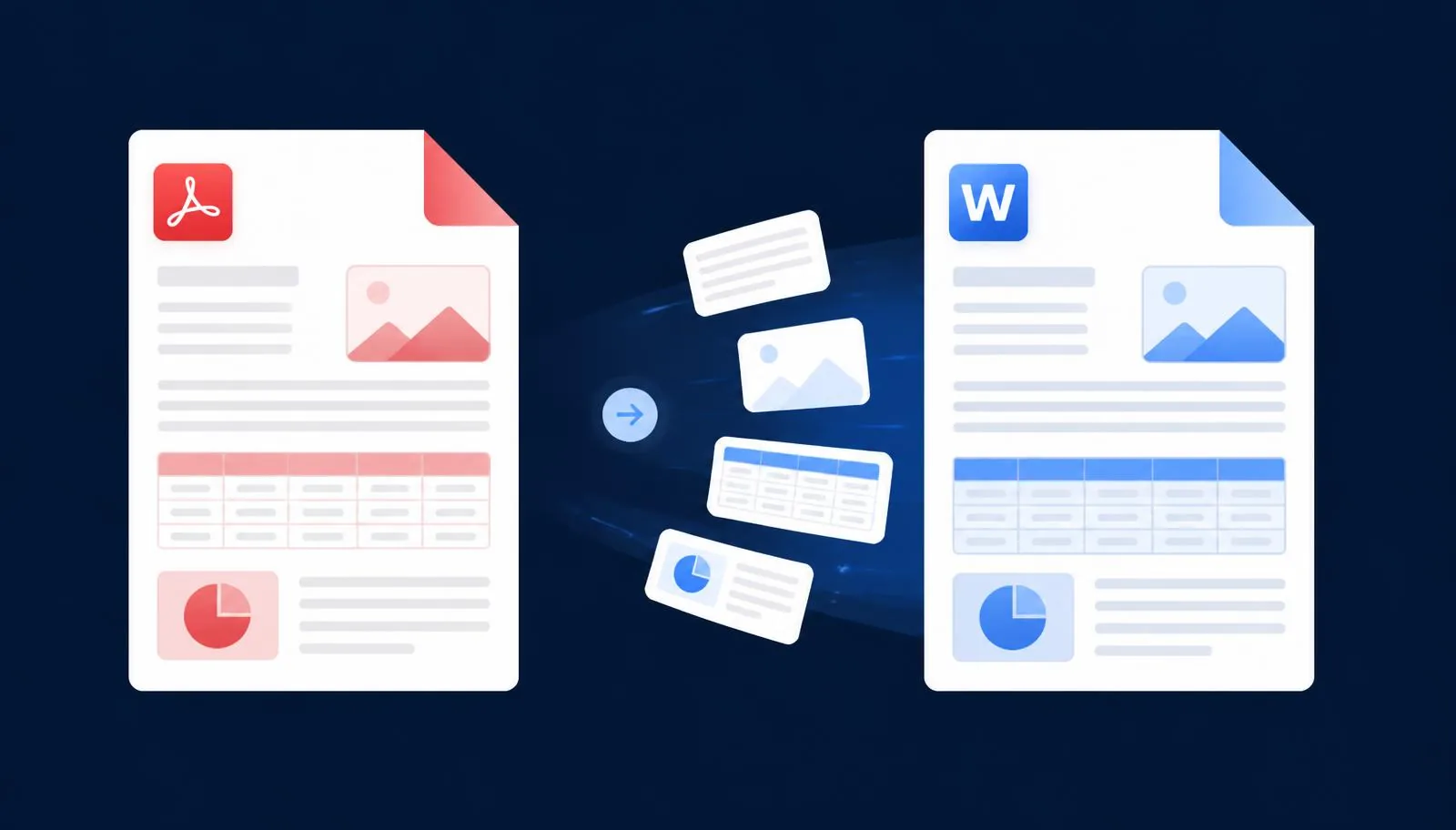
You export a proposal as a PDF, send it to a client, and two days later they ask for one small change. You open the PDF in a converter, download the Word file — and the layout has fallen apart. The logo has moved, the pricing table has collapsed into a wall of tab characters, and your headings are now plain body text.
This is the single most common complaint about PDF to Word conversion, and it is entirely fixable. The problem is almost never your document. It is the conversion method. Most free converters run plain text extraction: they scrape the characters off the page and dump them into a new Word file, discarding everything that made the page look like a page.
In this 2026 guide we explain how PDF to Word conversion actually works under the hood, why formatting gets lost, and how to convert PDF to Word without losing formatting using NovaDocs AI PDF to Word. You will get a step-by-step walkthrough, a comparison table, fixes for the eight most common conversion problems, and answers to the questions people ask most.
Whether you are a student editing a research paper, a lawyer redlining a contract, or a designer recovering an old brochure, the same principles apply. Read once, and you will never fight a broken conversion again.
What is PDF to Word conversion?
PDF to Word conversion is the process of turning a fixed-layout PDF file into an editable DOCX document that opens in Microsoft Word, Google Docs, LibreOffice or Apple Pages.
That sounds simple, but the two formats are fundamentally different. A PDF is a print description. It says: place the glyph "A" in Helvetica Bold at exactly 72.4 points from the left and 655.1 points from the bottom. It has no concept of a paragraph, a heading, a bullet list or a table. Those things only look like they exist because the coordinates line up.
A DOCX file is the opposite: it is a semantic document. It stores paragraphs, styles, list levels, table rows and inline images, and lets the word processor decide where they land on screen.
So converting PDF to Word is not a translation — it is a reconstruction. A good converter has to look at thousands of positioned glyphs and infer the author's original intent: these six lines are one paragraph, this row of numbers is a table, this indented text with a dot in front is a bullet.
There are three broad approaches:
- Text extraction — grabs the raw characters and drops them in a blank document. Fast, free, and destroys formatting.
- Layout reconstruction — analyses coordinates, font metrics, ruling lines and whitespace to rebuild real paragraphs, styles, tables and images. Slower, dramatically more accurate.
- OCR-based conversion — used when the PDF is a scan with no text layer at all. The page is read as an image, text is recognised, and the layout is rebuilt from the recognised regions.
NovaDocs AI uses layout reconstruction for digital PDFs and routes scanned pages through its OCR engine first, so both types convert cleanly.
Why formatting gets lost during conversion
Understanding the four failure points below will tell you instantly why a specific file broke — and which tool will fix it.
Fonts
PDFs frequently embed subsetted fonts: only the glyphs actually used are stored, often under a mangled internal name like "ABCDEF+ProximaNova-Semibold". When a basic converter meets that name, it cannot match it to a font installed on your computer, so it silently substitutes something generic — usually Calibri or Times New Roman.
Substitution is not just cosmetic. Different fonts have different character widths, so a heading that fit on one line now wraps onto two, pushing everything below it down and breaking page balance. Bold and italic variants stored as separate embedded fonts often get flattened to regular weight, which is why converted documents look strangely uniform.
A quality converter maps embedded fonts to their closest real family, preserves weight and style as Word character formatting rather than as a font name, and keeps exact point sizes so line breaks stay put.
Images
Images in a PDF are stored as separate objects with a transformation matrix describing scale, rotation and position. Cheap converters ignore the matrix entirely — so logos disappear, get dropped at the end of the document, or reappear stretched.
Three specific things go wrong most often: transparency in PNG logos is flattened to a black or white box; vector graphics such as charts and icons are rasterised at screen resolution and look blurry when printed; and images anchored behind text (watermarks, letterhead) are pulled into the text flow, shoving your paragraphs down the page.
Proper conversion keeps each image at its original resolution, preserves the alpha channel, and re-anchors it in Word with the same wrap setting the PDF implied.
Tables
Tables are where most converters fail hardest, because a PDF table is not a table. It is a set of text runs plus, sometimes, some drawn lines. Nothing in the file says "this is a 4-column, 12-row grid".
To rebuild it, a converter must detect the ruling lines, or — for borderless tables — infer columns from consistent vertical whitespace gaps, then handle merged cells, multi-line cells and rows that span a page break. Text extraction skips all of that and produces rows of numbers separated by spaces, which is unusable in a financial or academic document.
If your PDFs are mostly tabular data such as invoices, bank statements or research results, consider PDF to Excel instead — it is purpose-built for grids and often gives a cleaner result than Word.
Layout
Layout covers everything structural: multi-column pages, headers and footers, page numbers, footnotes, text boxes, sidebars and section breaks.
The classic disaster is a two-column academic paper. Read naively left to right, the converter interleaves the two columns, producing sentences that jump mid-thought between unrelated paragraphs. Similarly, repeated headers and footers get dumped into the body once per page instead of being placed in Word's header and footer regions.
Reading order also matters for accessibility and for anything you plan to feed into AI later. If you intend to summarise or query the document afterwards with Chat with PDF or the AI Summarizer, a correct reading order directly improves the quality of the answers you get.
How NovaDocs AI preserves formatting
NovaDocs AI does not extract text. It reconstructs the document. The conversion engine analyses each page's geometry, typography and graphics, then writes a genuine DOCX with real Word structures — not a text dump wearing a .docx extension.
Here is what that means for each element you care about.
Paragraphs
Lines are grouped into paragraphs using baseline spacing, indentation and justification cues, so a paragraph stays a single editable block instead of becoming a stack of hard line breaks. Headings are detected by relative font size and weight and mapped to Word's Heading 1–4 styles, which means your navigation pane, cross-references and automatic table of contents all keep working.
Alignment, first-line indents, space before and after, and line spacing are carried across as paragraph properties — so when you add a sentence, the text reflows exactly as it should.
Bullet points
Bullet glyphs are recognised and converted into real Word list items rather than literal • characters typed at the start of a line. The engine reads the hanging indent to work out nesting level, so second- and third-level bullets stay nested.
- Bullets remain lists you can extend by pressing Enter
- Nested levels keep their indentation and marker style
- Mixed lists (bullets inside numbered steps) survive intact
- List spacing matches the original visual rhythm
Numbered steps
Numbered sequences are converted to Word numbering definitions, not static text. That distinction matters enormously in practice: if you delete step 3 from a genuine numbered list, Word renumbers everything below automatically. In a text-extracted file, you would renumber every step by hand.
- Ordered lists become Word numbering, so they auto-renumber on edit
- Multi-level schemes such as 1, 1.1, 1.1.a are preserved
- Roman numerals, letters and custom start values are respected
- Lists interrupted by an image or paragraph resume at the right number
Alongside these, NovaDocs AI keeps tables as real Word tables with merged cells intact, preserves images at original resolution with transparency, retains hyperlinks as clickable links, moves headers and footers into Word's header and footer regions, and maintains correct reading order on multi-column pages.
Step-by-step: convert PDF to Word without losing formatting
The whole process takes under a minute and needs no software installation. It works identically on Windows, macOS, Linux, Android and iOS, because everything runs in your browser.
Step 1 — Open the PDF to Word tool
Go to PDF to Word. There is nothing to download and nothing to configure. If your PDF is larger than your email limit or is unusually heavy with images, run it through Compress PDF first — compression reduces upload time without touching the text layer.
Step 2 — Upload your PDF
Drag your file into the upload panel, or tap to browse. On a phone you can pick the file straight from Files, Drive or your downloads folder. If you need to convert several PDFs as one document, combine them first with Merge PDF; if you only need part of a long report, pull out the pages you want with Extract Pages.
If your PDF is password-protected, remove the restriction first using Unlock PDF — no converter can read an encrypted file.
Step 3 — Let the engine reconstruct the document
Conversion starts automatically. The engine parses the page tree, maps fonts, detects tables and columns, extracts images, and assembles a DOCX. A typical 10-page business document finishes in a few seconds; a 200-page scanned manual that needs OCR takes longer because every page is recognised individually.
Step 4 — Download and check
Download the DOCX and open it in Word, Google Docs or Pages. Spend thirty seconds on this checklist:
- Do headings appear in Word's navigation pane? If yes, styles were mapped correctly.
- Click inside a table — do you see row and column handles? If yes, it is a real table.
- Click a bullet and press Enter — does a new bullet appear automatically?
- Zoom to 200% on a logo — is it crisp rather than pixelated?
- Scroll a multi-column page — does the text read in the right order?
Everything passing means you have a fully editable document. From there you can edit freely and, when you are finished, convert back with Word to PDF to produce a clean, shareable final file.
Benefits of using NovaDocs AI
Plenty of converters exist. These are the reasons people keep coming back to this one.
- Layout-accurate output — real paragraphs, styles, tables, lists and images rather than a text dump
- Scanned PDFs supported — built-in OCR handles photographed and scanned pages, including handwriting
- 100+ languages — including right-to-left scripts such as Urdu, Sindhi and Arabic, with correct reading order
- No watermarks — your output is clean, always
- No installation — works in any modern browser on any operating system, including phones and tablets
- Private by design — your files are used to produce your output and are never used to train AI models
- A complete workspace — merge, split, compress, sign, protect, translate, summarise and chat with the same file
- Free for everyday use — core conversion is free, with no page-count paywall on typical documents
That last point matters more than it sounds. Most people do not need one converter — they need a converter plus five other things. Being able to convert a PDF, then immediately translate it into another language or summarise it for a colleague, removes the constant file-shuffling between five different websites.
Common problems and how to solve them
If something still looks wrong after conversion, one of these eight scenarios almost certainly explains it.
The Word file is empty or full of symbols
Your PDF has no text layer — it is a scan or a photo. Run it through OCR first to generate real, searchable text, then convert. Garbled symbol soup usually means a broken embedded encoding map, which OCR also solves because it reads the pixels rather than the (broken) character codes.
Fonts look different from the original
The PDF used a font you do not have installed. The converter picks the closest match. To restore the exact look, install the original font, or select all in Word and set the font family manually — the sizes, weights and spacing are already correct, so this is a one-click fix.
Tables came through as loose text
The table was borderless with irregular column spacing, which is genuinely ambiguous. Try PDF to Excel, which uses a stricter grid-detection model, then paste the resulting grid into Word.
Images are missing or low quality
The source images were low-resolution to begin with, or the PDF had been heavily compressed before you received it. Conversion cannot add detail that is not in the file. Ask for the original assets, or re-export the PDF at print quality from its source application.
Text order is scrambled on multi-column pages
Some academic and newspaper layouts confuse column detection, particularly when a figure straddles both columns. Extract the affected pages with Extract Pages and convert them alone — smaller page ranges usually resolve ambiguity.
Conversion fails on a large file
Very large PDFs can time out on a slow connection. Run Compress PDF first, or split the document and convert in parts. Merging the resulting Word files afterwards takes seconds.
The PDF is password protected
Encrypted files cannot be parsed. Use Unlock PDF with the password you were given, then convert. If you want to re-secure the finished document afterwards, use Protect PDF.
Right-to-left text appears reversed
Urdu, Sindhi, Arabic and Hebrew need bidirectional handling that most converters lack. NovaDocs AI preserves RTL reading order in both conversion and OCR, and the AI Translator keeps headings, tables and lists intact when moving between scripts.
NovaDocs AI vs other PDF converters
A quick comparison of the three approaches you will encounter online.
| Capability | NovaDocs AI | Basic free converters | Desktop PDF suites |
|---|---|---|---|
| Conversion method | Layout reconstruction | Plain text extraction | Layout reconstruction |
| Fonts and text styling | Preserved with weights | Usually substituted | Preserved |
| Real editable tables | Yes | Rarely | Yes |
| Images and logos | Original resolution, transparency kept | Often dropped or flattened | Preserved |
| Bullets and numbering | Real Word lists | Literal characters | Real Word lists |
| Scanned PDFs (OCR) | Built in | Rarely | Usually paid add-on |
| RTL languages (Urdu, Arabic) | Supported | Often broken | Varies |
| Watermark on output | None | Common on free tiers | None |
| Installation required | No — browser based | No | Yes — desktop install |
| Works on mobile | Yes | Limited | No |
| Extra AI tools on the same file | Summarise, chat, translate, study | None | Limited |
| Cost for everyday use | Free | Free with limits | Paid subscription |
The pattern is clear: free text-extraction tools are fine for grabbing a quote out of a PDF and nothing more. Desktop suites are excellent but cost money, need installation and do not run on a phone. NovaDocs AI gives you desktop-grade reconstruction in the browser, plus an AI layer those suites do not have.
Pro tips for near-perfect conversions
- Always convert from the original PDF, never from a printed-and-rescanned copy — each round trip loses information permanently.
- If you control the source, export the PDF with fonts fully embedded; it measurably improves conversion accuracy.
- Convert only the pages you need. Shorter documents give cleaner structural detection.
- For forms, try Fill PDF Form before converting — filled fields survive the round trip better.
- After editing, export back with Word to PDF so recipients see exactly what you see.
- Working with study material? Convert first, then run the file through the AI Study Assistant for notes, quizzes and flashcards.
Frequently Asked Questions
- How do I convert PDF to Word without losing formatting?
- Use a converter that rebuilds document structure instead of extracting plain text. Upload your file to NovaDocs AI PDF to Word, wait a few seconds, and download a DOCX with real paragraphs, headings, tables, lists and images preserved.
- Is NovaDocs AI PDF to Word free?
- Yes. Converting PDF to Word is free for everyday documents, with no watermark on the output. A free account unlocks history and heavier batch conversions.
- Will my tables stay editable in Word?
- Yes. Bordered and most borderless tables are rebuilt as genuine Word tables with rows, columns and merged cells, so you can edit cells normally. For dense data-heavy grids, PDF to Excel often gives an even cleaner result.
- Can I convert a scanned PDF to Word?
- Yes. Scanned and photographed PDFs are routed through the built-in OCR engine, which recognises printed and handwritten text in over 100 languages before rebuilding the layout.
- Does it work on Android and iPhone?
- Yes. Everything runs in the browser, so you can convert PDF to Word on Chrome for Android, Safari on iPhone, or any desktop browser without installing an app.
- Are my files private?
- Your files are processed only to produce the output you requested. They are never used to train AI models, and you can delete them at any time.
- Why do fonts change after conversion?
- PDFs embed subsetted fonts that your computer may not have installed, so the converter substitutes the closest available match. Installing the original font, or selecting all text in Word and setting the font family, restores the exact appearance instantly.
- What is the maximum file size I can convert?
- Typical business and academic documents convert without issue. If a very large or image-heavy file times out, run Compress PDF first or split it into smaller parts and convert them separately.
- Can I convert Word back to PDF afterwards?
- Yes. Once you have finished editing, use the Word to PDF tool to export a clean, shareable PDF that looks identical on every device.
- Does it support Urdu, Sindhi and Arabic?
- Yes. Right-to-left scripts are fully supported in both conversion and OCR, with correct bidirectional reading order preserved in the Word output.
- Is it safe to upload confidential files for conversion?
- Conversion runs over an encrypted connection and files are not kept after your session. For highly sensitive contracts, convert on a device you control and delete the download when you are finished.
- What are the most common PDF to Word mistakes?
- Converting a scanned page without OCR, expecting a design-heavy brochure to reflow perfectly, and not proofreading tables and numbers afterwards.
Converting a scanned PDF into editable Word (OCR)
A scanned PDF is a photograph of a page, so a normal converter has nothing to copy — it hands you a Word file containing one flat image. The fix is OCR (optical character recognition), which recognises the letter shapes and rebuilds real, editable text.
- Open OCR and upload the scan, or drop the file straight into PDF to Word.
- Pick the document language — accuracy on Urdu, Sindhi and Arabic scans depends on it.
- Let the page be recognised, then download the editable DOCX.
- Read the output once against the original: numbers, names and table cells are where OCR slips.
Accuracy tracks scan quality. A straight, well-lit 300 DPI scan of printed text is usually near-perfect; a crooked phone photo of faded handwriting is not. Rescan rather than fight a bad source file.
Conclusion
Losing formatting when you convert PDF to Word is not inevitable — it is a symptom of using the wrong kind of converter. Plain text extraction throws away the fonts, tables, images and structure that make a document usable. Layout reconstruction keeps them.
Once you understand the four failure points — fonts, images, tables and layout — you can diagnose any broken conversion in seconds and pick the right fix: OCR for scans, PDF to Excel for dense grids, page extraction for tricky multi-column layouts.
NovaDocs AI brings all of it together in one free browser workspace: accurate PDF to Word conversion, OCR for scanned pages, and an AI layer that lets you summarise, translate, chat with and study the same document without ever leaving the site.
Ready to keep your formatting? Convert your file now with PDF to Word — free, no installation, no watermark — then explore Chat with PDF, AI Summarizer, AI Translator and the AI Study Assistant to do more with the same document.
Ready to try it yourself?
All the PDF & AI tools mentioned in this article — free to use.
Related articles

Get weekly PDF & AI tips
Join thousands of students and professionals getting productivity tips in their inbox.