How to Merge Multiple PDFs Free - Easy Step by Step
Learn how to merge multiple PDFs into one document for free. Step-by-step guide to combine PDF files online with no software installation.
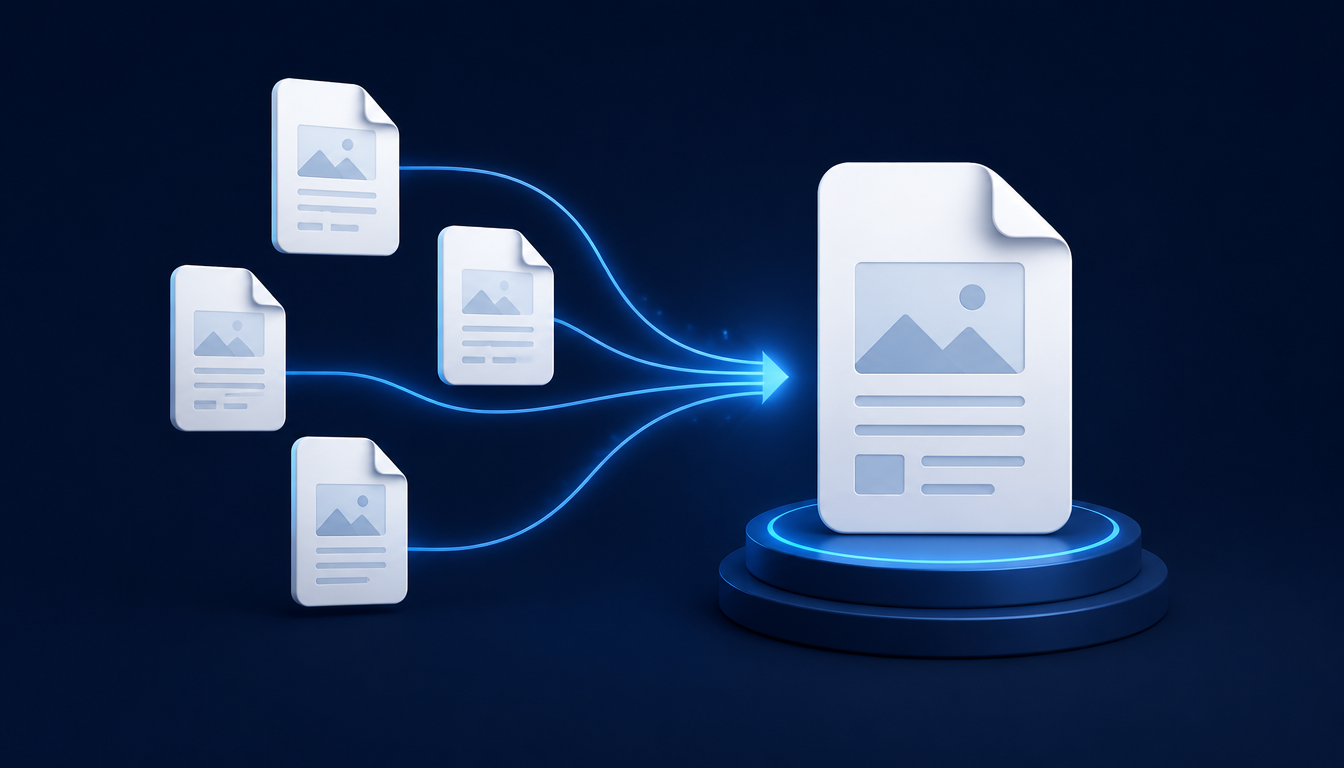
Combine multiple PDFs into a single document in seconds. Learn the easiest way to merge PDF files free - no software installation required. Whether you are a student compiling lecture notes, a freelancer wrapping up a proposal, or a small business owner organizing invoices, merging PDFs is one of the most common document tasks you will face. And the good news is that you can do it online, for free, and in just a few clicks.
In this complete guide, you will learn why merging PDFs makes your life easier, the different ways to combine files, and the exact step-by-step process to merge multiple PDFs into one document using NovaDocs AI's free Merge PDF tool. No signup, no credit card, and no confusing settings — just fast, professional results.
Why Merge PDFs?
Merging PDFs is not just about reducing file clutter. It is about creating cleaner workflows, easier sharing, and more professional presentations. When you combine several related documents into one file, everyone who receives it gets the full picture without juggling multiple attachments.
- **Organize documents** — keep related pages, chapters, or reports in one logical file instead of scattered attachments
- **Easier sharing** — send one PDF instead of ten, so recipients do not miss pages or open files in the wrong order
- **Better workflow** — review, archive, and print a single document without switching between tabs and windows
- **Professional presentation** — proposals, portfolios, and reports look more polished when everything flows as one file
For students, this means combining lecture slides, reading notes, and assignments into one study pack. For professionals, it means merging contracts, invoices, and supporting documents into a single client deliverable. The time saved adds up quickly.
Methods to Merge PDFs
There are several ways to combine PDF files. Some people still use desktop software, others rely on built-in print-to-PDF tricks, and many prefer modern online tools. Here is a quick comparison so you can choose the best method for your needs.
- **Manual method** — copy pages one by one using a PDF editor or preview app. It works but is slow and error-prone for large files
- **Online tools** — upload, arrange, and merge PDFs in your browser. Fast, free, and works on any device
- **Software options** — paid desktop apps with advanced editing features. Useful if you already own them, but overkill for simple merging
- **Best practice** — use a dedicated free PDF merger that preserves quality, keeps page order, and does not add watermarks
Online PDF mergers have become the go-to choice because they require no installation, work across all operating systems, and handle most everyday merging tasks in seconds. The key is to pick a tool that processes files locally or securely, so your documents stay private.
How to Merge PDFs Free - Step by Step
Here is the complete process to combine multiple PDFs into one document using NovaDocs AI. The first time you use it, the whole workflow takes under a minute. After that, it takes seconds.
Step 1: Upload Your PDFs
Open the free Merge PDF tool. Click the upload area or drag and drop your PDF files directly into the browser. You can add two files or twenty — the tool queues them up for you. There is nothing to install and no account required to start.
Step 2: Arrange the Order
Once your files are uploaded, you will see them as a list. Drag and drop each file into the order you want in the final document. This is the most important step because it decides how the pages will flow. Put the cover page first, then chapters, appendices, and supporting files last.
Step 3: Click Merge
After arranging the files, click the Merge button. The tool combines every page from every PDF into one continuous document. The process is fast and runs directly in your browser, so your files are not sent to a remote server for processing.
Step 4: Download Your Merged PDF
When the merge is complete, download your new combined PDF. It will contain every page from every uploaded file, in the exact order you chose. Save it with a clear name like Combined_Report_2026.pdf so you can find it easily later.
Tips for Perfect Merging
A few simple habits will make your merged PDFs cleaner, smaller, and easier to use. These tips are especially helpful when you are combining files from different sources or scans.
- **File order tips** — name your files with numbers before uploading, like 01_Cover.pdf, 02_Chapter1.pdf, so the default order is already correct
- **Quality preservation** — a good merger copies pages without re-rendering, keeping text sharp and images crisp
- **Page handling** — check that scanned pages are all the same orientation before merging to avoid upside-down pages mid-document
- **Document organization** — add a cover page and table of contents first if the final file will be shared with others
If your merged file becomes too large, you can run it through the Compress PDF tool to reduce the size before emailing or uploading it. And if you only need certain pages from a large file, the Extract Pages tool lets you pull out exactly what you need before merging.
How to Use Our Free Tool
NovaDocs AI's Merge PDF tool is built for speed and simplicity. It focuses on one job — combining PDFs — and does it exceptionally well. Here is what makes it stand out.
- **Simple upload process** — drag, drop, or browse. Your files appear instantly in a clear list
- **Easy rearrangement** — drag files up or down to change the final page order in seconds
- **No forced watermark** — your merged PDF is clean and professional, not branded by a third party
- **Fast download** — get your combined file immediately after merging, with no waiting queue
The tool works entirely in your browser, which means your documents are processed locally. This is important for anyone handling contracts, financial records, student records, or any file that should stay private. There is no signup barrier, so you can merge files the moment you land on the page.
Need to split a PDF before merging parts of it? Use the Split PDF tool to break a large file into sections, then merge only the pages you need into a clean final document.
FAQs About Merging PDFs Online
Frequently Asked Questions
- Is the PDF merger really free?
- Yes. The NovaDocs AI Merge PDF tool is free to use with no credit card and no signup required to start.
- How many PDFs can I merge at once?
- You can merge multiple PDFs in one session. There is no hard limit on the number of files, though very large files may take longer depending on your device.
- Are there file size limits?
- The tool handles typical document sizes smoothly. If you hit a limit, try compressing your PDFs first with the Compress PDF tool.
- How long does it take to merge PDFs?
- Most merges finish in seconds. The exact time depends on the number of pages and file sizes, but the process is designed to be fast.
- Is my data secure when merging PDFs online?
- Yes. Files are processed in your browser and are not uploaded to a remote server, so your documents stay on your device.
Call to Action: Merge Your PDFs Now
Merge your PDFs now. Free, fast, secure. No credit card needed. Start combining documents today. You now know why merging PDFs helps, the different methods available, and the exact four-step process to combine multiple files into one polished document.
Stop sending ten separate attachments. Stop scrolling through scattered pages. Use the free Merge PDF tool to combine your PDFs into one organized file in seconds — and get back to the work that actually matters.
👉 Try the Free PDF Merger Now — combine multiple PDFs into one document instantly. No signup. No credit card. Just clean, merged files.
Ready to try it yourself?
All the PDF & AI tools mentioned in this article — free to use.
Related articles
Get weekly PDF & AI tips
Join thousands of students and professionals getting productivity tips in their inbox.