How to Merge Multiple PDF Files Into One — Free & Easy Guide 2026
Scattered invoices, scanned pages and application documents in ten separate files? Here is the simplest way to merge PDF free and send one tidy document instead.
You scanned ten pages and got ten separate files.
Or your accountant asked for last quarter's invoices and they are sitting in twelve different downloads. Or a job application wants your CV, degree, experience letter and ID as one document, and right now they are four attachments with names like scan_003_final.pdf.
Sending files like that looks messy, and the person on the other side has to open each one to understand what they received. Merging them into a single PDF fixes the whole problem in a few seconds.
This guide shows you exactly how to merge PDF free in your browser, how to keep the pages in the right order, and the small mistakes that make merged files look unprofessional.
Why merging PDFs actually matters
Combining files is not just tidiness. It changes how your document is received and how easy it is to work with later.
Everything stays organised
One file means one place to look. No hunting through a downloads folder for page 7 of a contract, and no risk of a page going missing when you move things between devices.
Sharing becomes far easier
Email attachment limits, upload forms and portals all prefer a single file. Attaching one merged PDF beats attaching fifteen files that may arrive out of order — or get stripped by a filter.
It simply looks professional
A client receiving one clean proposal, or a recruiter receiving one complete application pack, forms a better impression than someone who has to assemble your documents themselves. Presentation is part of the message.
Printing and archiving get simpler
One document prints in one job with continuous page numbers, and archives as a single record. That matters for invoices, tax files, medical reports and anything you may need to retrieve years later.
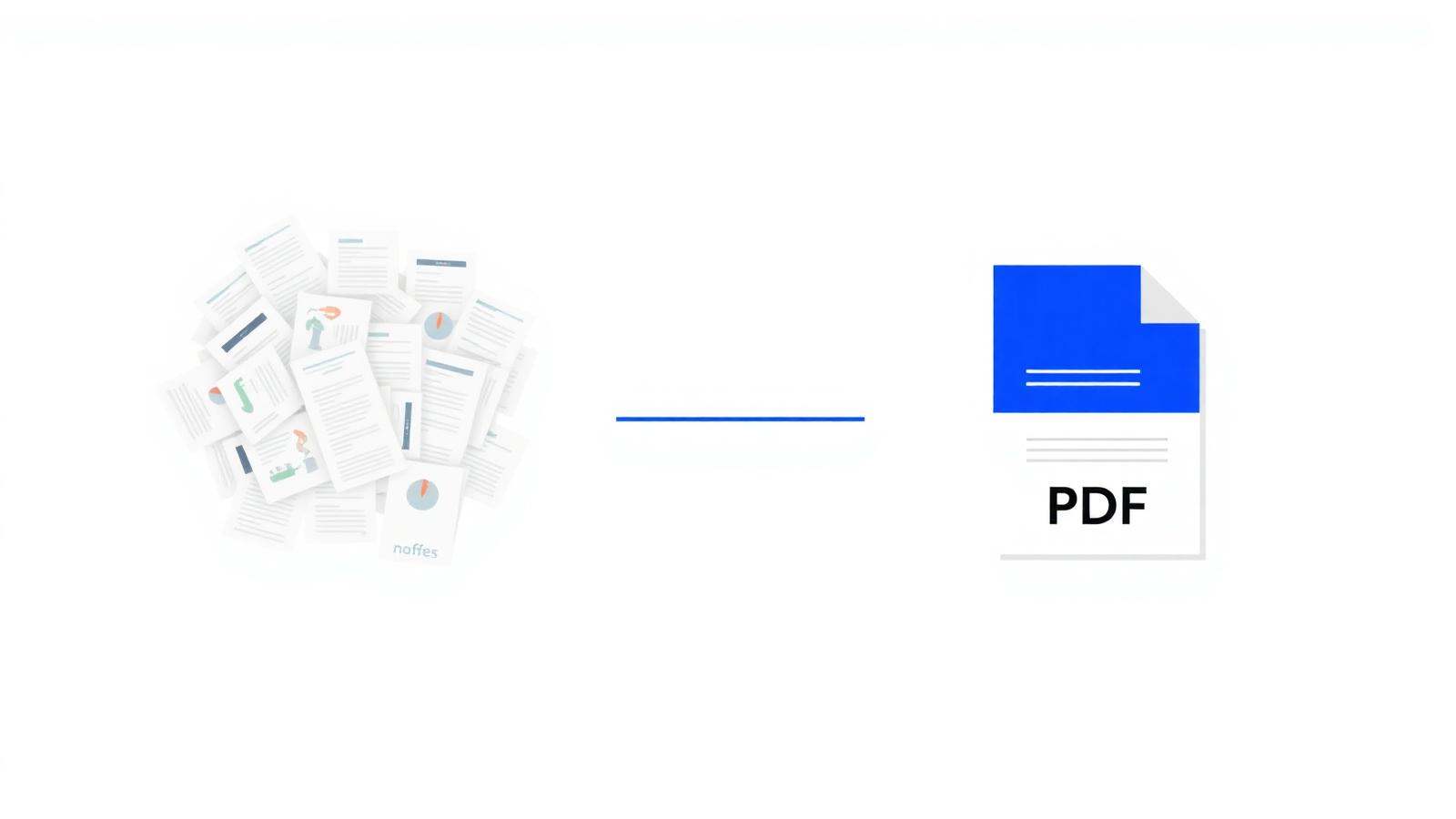
Step by step: how to merge PDF files with NovaDocs AI
Here is the full process using the Merge PDF tool. It runs in your browser, so there is nothing to install and it behaves the same on Windows, Mac, Android and iPhone.
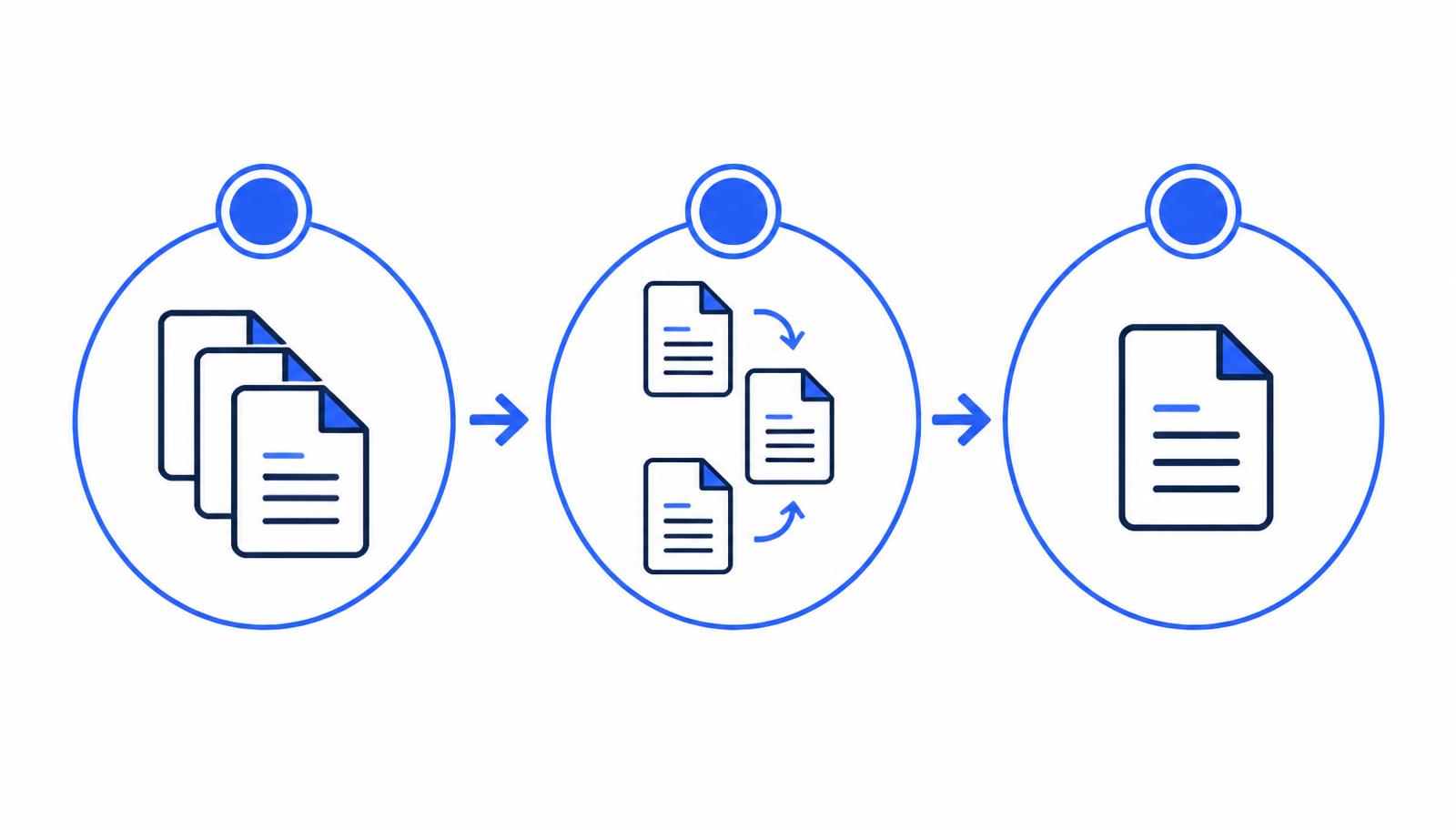
Step 1 — Open the Merge tool
Go to novadocsai.com and open Merge PDF. There is no account to create and no email to hand over. It is a genuine PDF merger no signup required.
Step 2 — Add your files
Drag your PDFs into the upload area, or tap to browse and select several at once. You can add files from different folders, and you can keep adding more after the first batch.
Step 3 — Put them in the right order
This is the step that matters most. Move the files until the sequence reads the way the final document should read — cover letter first, CV second, certificates after that.
Step 4 — Merge
Press the merge button. The pages are combined exactly as they were: same text, same images, same logos, same layout. Nothing is re-rendered or flattened into a picture.
Step 5 — Download and check
Download the finished PDF and scroll through it once. Confirm the order is right, no page is duplicated and nothing is missing. Then send it.
Best practices for a clean merged PDF
A few habits separate a merged file that looks deliberate from one that looks rushed.
Name files so they sort themselves
Rename your files 01-cover, 02-cv, 03-certificate before uploading. When you combine PDF files online, a sensible name order makes the correct sequence obvious at a glance.
Check page numbers after merging
If the original documents each had their own page numbers, the merged file will show 1, 2, 1, 2, 3 and so on. That is normal. For formal documents, add fresh numbering with Add Page Numbers.
Watch the final file size
Merging adds sizes together, and scanned pages are heavy. If the result is too large to email, run it through Compress PDF — you will usually save a lot of megabytes with no visible difference.
Fix orientation before you merge
One sideways scan in the middle of a document is distracting. Straighten it with Rotate PDF first so the whole file reads in one direction.
Remove pages you do not need
Blank scanner pages, duplicate copies and old drafts do not belong in the final pack. Use Split PDF or Remove Pages to trim before combining.
Common mistakes people make when merging PDFs
Almost every bad merged file comes down to one of these five.
1. Merging in the wrong order
Uploading files in whatever order they appear and merging straight away is the number one issue. Always review the sequence before pressing merge — reordering afterwards means starting again.
2. Forgetting a page
It is easy to select nine files when you meant ten. Count your pages in the finished document against what you expected before sending it anywhere.
3. Ignoring the size of scanned files
Twenty scanned pages can easily exceed 25 MB and bounce back from email. Compress the merged file rather than splitting it into attachments again.
4. Trying to merge a password-protected file
A locked PDF cannot be combined while it is locked. If you own the file, remove the password with Unlock PDF, merge, then re-protect the result with Lock PDF.
5. Using an untrustworthy website
Contracts, bank statements and ID documents should not be uploaded to a site covered in pop-ups and fake download buttons. Check for HTTPS, a clear privacy policy and a stated deletion policy before uploading anything private.
Frequently Asked Questions
- Is it free to merge PDF files?
- Yes. The Merge PDF tool is free to use, with no watermark on the result and no trial limit. You can merge PDF free as often as you need.
- Do I need to create an account?
- No. It is a PDF merger no signup is required for — open the page, add your files and download the merged document.
- How many PDFs can I combine at once?
- You can combine several files in a single go. For very large batches, merge them in groups of ten or so and then merge those results together for the best speed.
- Will merging reduce the quality of my pages?
- No. Pages are copied into the new document as they are, so text stays sharp and selectable and images keep their original resolution.
- Can I merge PDFs on my phone?
- Yes. The tool is fully mobile-responsive, so you can combine PDF files online from an Android phone or iPhone browser with no app to install.
Combine your files in the next minute
There is no reason to send ten attachments when one clean document does the job better.
Open the free Merge PDF tool, drag in your files, set the order and download one professional PDF. It takes less time than writing the email you are about to attach it to.
Ready to try it yourself?
All the PDF & AI tools mentioned in this article — free to use.
Related articles

Get weekly PDF & AI tips
Join thousands of students and professionals getting productivity tips in their inbox.