How to Merge Multiple PDFs into One File (Free, Online)
Six attachments, one email, and a recipient who will open maybe two of them. Here is how to merge multiple PDFs into one clean file in your browser — in the right order, at a sensible file size, without installing anything.
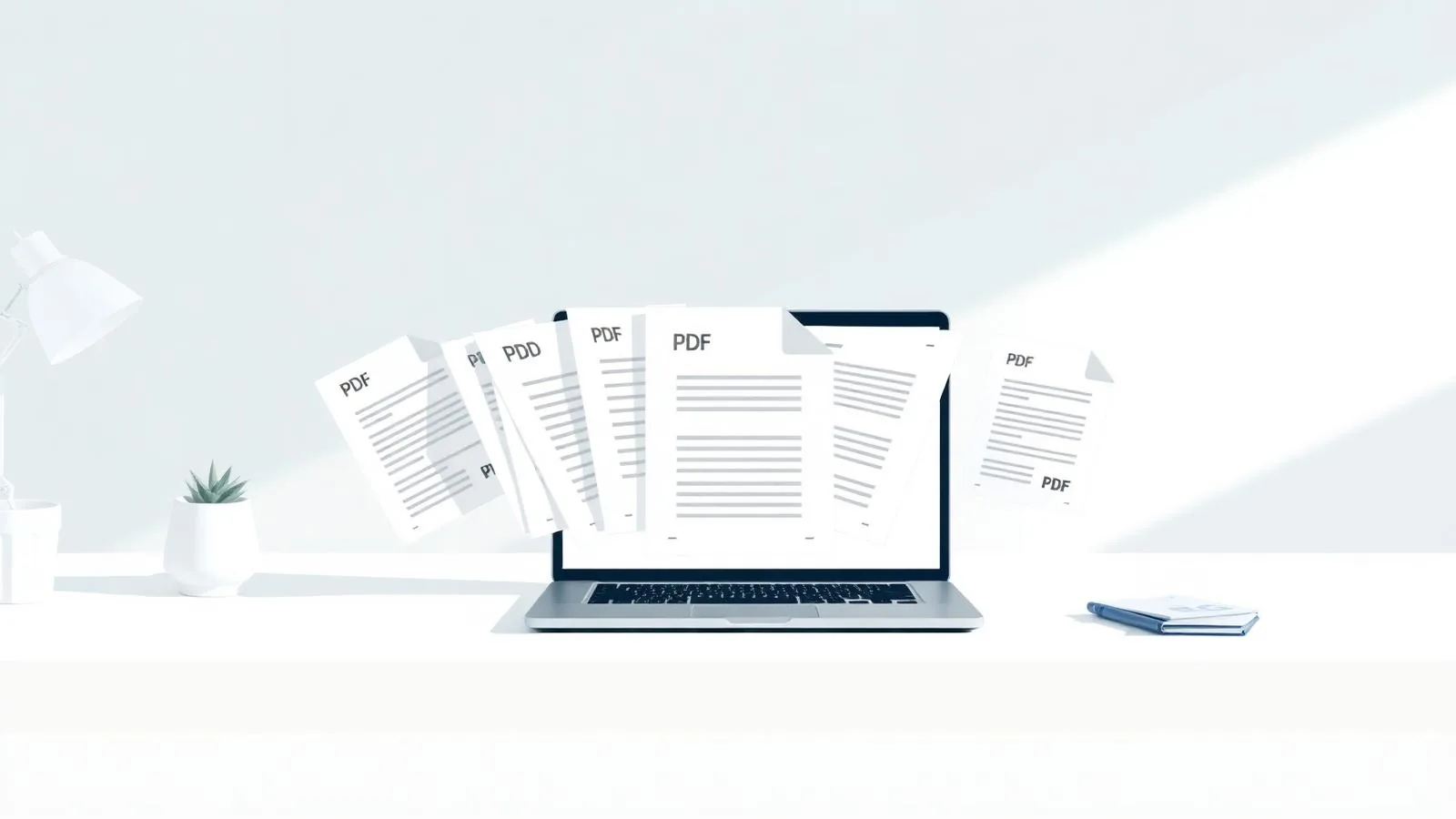
Almost every document job ends the same way: a scanned signature page here, an invoice there, three appendices someone emailed separately, and a cover letter you wrote last. Sending them as six attachments works, technically — but the person on the other end will open two of them, lose the rest, and reply asking for the file you already sent. Merging them into a single PDF takes about thirty seconds and removes the problem entirely.
This guide covers how to merge multiple PDFs into one file for free in your browser, how to control page order before you combine, what to do about file size, and the mistakes that make a merged document look sloppy.
Why one file beats six attachments
- Nothing gets lost. A single attachment cannot be partially downloaded, half-forwarded, or filed in three different folders.
- Page order is fixed. You decide the sequence once, instead of hoping the reader opens the cover letter before the appendix.
- It prints correctly. One file means one print job, in order, without someone collating pages by hand.
- Search works across everything. Keyword search runs over the whole document rather than each attachment in turn.
- It looks finished. A single, well-ordered PDF reads as a deliverable; a folder of loose files reads as homework you handed over unsorted.
How to merge multiple PDFs into one file
Using the Merge PDF tool on NovaDocs AI, the whole process runs in your browser — no install, no account, no watermark on the output:
- Upload your files. Drag every PDF into the upload area at once, or tap to browse if you are on a phone. You can add more files after the first batch.
- Set the order. Arrange the documents in the sequence you want them to appear. This is the step most people rush, and the only one that is annoying to fix afterwards.
- Merge. The files are combined into one continuous PDF, keeping the original fonts, images, tables and page sizes intact.
- Download. Save the finished file and send it. What arrives is a normal PDF that opens in every reader, on every device.
Mixed page sizes are fine — an A4 report and a US Letter scan can live in the same file. If consistency matters for printing, standardise the odd pages before merging rather than after.
Getting the page order right the first time
A merged document is judged almost entirely on its sequence. A useful convention for business paperwork: cover letter or summary first, the main document second, supporting evidence third, and signed or scanned pages last. For applications and submissions, follow whatever order the recipient specified — reviewers work through a checklist and an out-of-order file slows them down.
If a source document is itself in the wrong order, fix it before merging. The Reorder pages tool moves pages inside a single PDF, Remove pages deletes blanks and duplicate cover sheets, and Extract pages pulls out just the section you actually need. Cleaning each file first is far quicker than untangling a 90-page merged document afterwards.
Scanned pages that came out sideways should be corrected with Rotate PDF before they go in. Rotation is stored per page, so a merged file happily preserves an upside-down scan if you let it.
What to do when the merged file is too large
Merging adds file sizes together, and scanned pages are the usual culprit — a handful of photographed contracts can push a document past the 10 MB or 25 MB limit most mail servers enforce. Two fixes, in order of preference:
- Compress once, at the end. Run the finished merged file through Compress PDF rather than compressing each source file and then merging — repeated recompression is what turns readable scans into grey mush.
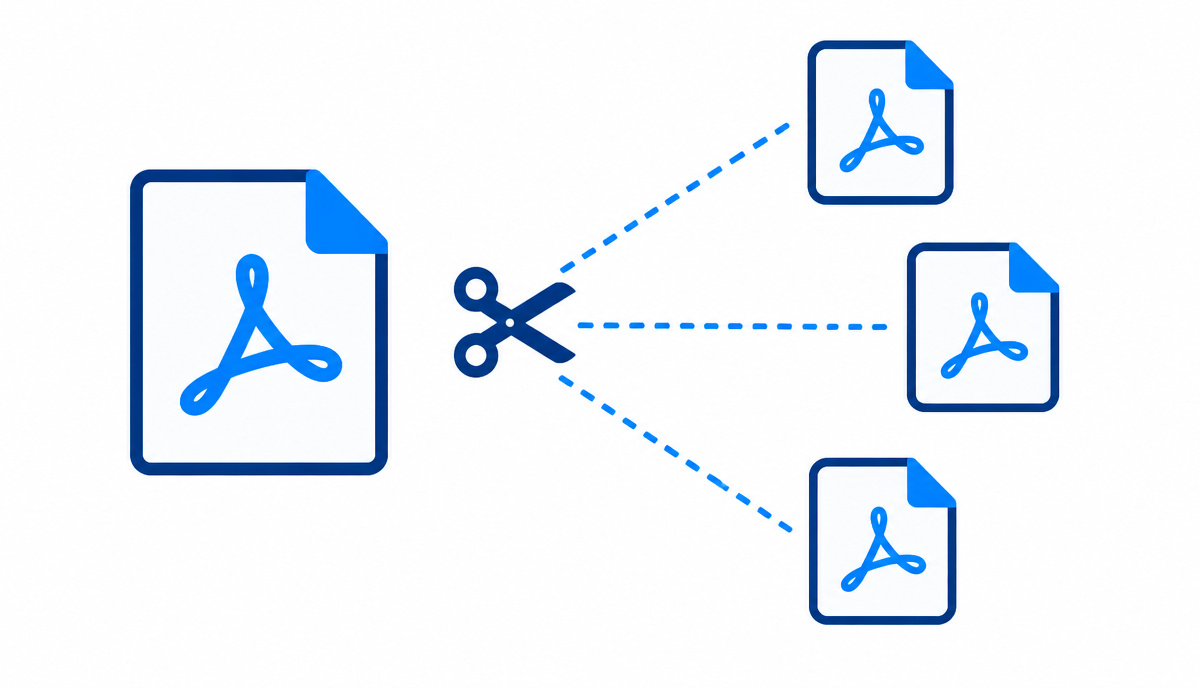
- Split by section. If the document genuinely needs to stay high resolution, use Split PDF to produce two or three logically named parts instead of one oversized file.
If the pages are scans and you also want the text to be searchable, run OCR before compressing. Recognised text adds almost nothing to the file size and makes the whole document searchable afterwards.
Common mistakes when merging PDFs
- Merging before proofreading. Fix typos in the source files; editing a page inside a merged document is harder than it should be.
- Leaving duplicate cover pages. Three merged reports means three title pages unless you remove two of them.
- Forgetting page numbers. A 60-page combined document without numbering is impossible to discuss on a call — add them with Page numbers after merging, so the sequence is continuous.
- Merging password-protected files. Unlock them first with Unlock PDF, then merge, then re-protect the finished file if it needs it.
- Including confidential drafts by accident. Open the merged file and scroll it end to end once before sending. It takes a minute and has saved a lot of careers.
- Naming it output.pdf. Give the file a descriptive name — the recipient will search for it by name six months from now.
Merging on a phone
Because the tool runs in the browser, merging works the same on Android and iOS as it does on a desktop. Save each attachment to your device, open the Merge PDF tool, select them all, set the order and download. This is the fastest way to combine a photographed receipt with an emailed invoice while you are away from your desk — and it avoids installing an app that wants an account and a subscription for a one-minute job.
Frequently Asked Questions
- Is merging PDFs online free?
- Yes. The Merge PDF tool on NovaDocs AI is free, needs no account, and adds no watermark to the combined file.
- How many PDFs can I merge at once?
- You can combine many documents in a single pass. Very large batches of high-resolution scans are best merged in two or three groups, then combined again at the end — it keeps things fast in the browser.
- Will merging reduce the quality of my pages?
- No. Merging copies the original pages as they are, so text, images and fonts are unchanged. Quality only drops if you separately compress the file afterwards.
- Can I change the order of pages after merging?
- Yes — open the merged file in the Reorder pages tool and move pages around, or remove any you no longer need.
- Can I merge a Word document with a PDF?
- Convert the Word file first with Word to PDF, then merge the resulting PDF with the others.
- Is it safe to merge confidential documents online?
- Files are transferred over HTTPS and deleted after processing, and are never used to train AI models. For sensitive material, add a password to the finished file with Lock PDF before emailing it.
- Do I need an account to merge PDFs?
- No. Upload, order, merge and download — there is no signup and no watermark.
- How long does merging take?
- A few seconds for typical documents. Time depends mostly on total page count and your device, not on an upload queue.
- Are there file size limits?
- Merging happens on your device, so the practical limit is your device's memory. If a very large batch struggles, merge in two rounds.
Merging methods compared: browser, desktop app, phone
| Method | Best for | Watch out for |
|---|---|---|
| Browser tool | Everyday merges on any device, no install | Very large batches depend on your device memory |
| Desktop software | Repeat professional work with page-level editing | Cost, installation and updates |
| Phone | Merging photos of documents while away from a desk | Check the page order before you send |
For most people the browser route wins because nothing is installed and the files never leave the device. Merging itself takes a few seconds; the time you spend is almost entirely in getting the page order right.
One file, one send
Combining documents is the least glamorous part of document work and one of the most noticeable when it is done badly. Merge the files, check the order, number the pages, compress if the mail server complains — and send one clean attachment instead of six.
Start with the Merge PDF tool at novadocsai.com. It is free, runs in any browser, and needs no signup.
Ready to try it yourself?
All the PDF & AI tools mentioned in this article — free to use.
Related articles
Get weekly PDF & AI tips
Join thousands of students and professionals getting productivity tips in their inbox.