How to Split a PDF into Multiple Files (Free, Online)
A 200-page PDF when you only need pages 34 to 41 is dead weight. Here is how to split a PDF into multiple files or extract exact page ranges in your browser — free, with no signup and no watermark.
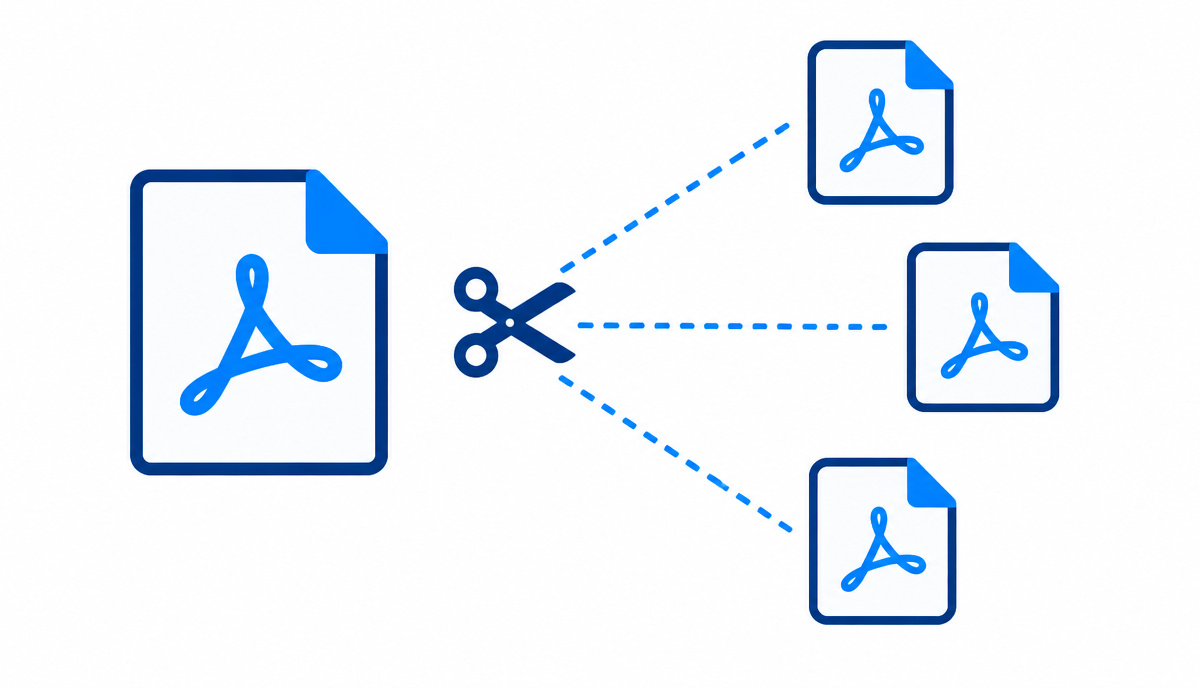
Big PDFs have a way of arriving at the worst moment. The university sends one file with every student's transcript. The scanner saves a whole afternoon of paperwork as a single 300-page document. A client needs one chapter of a report, not all ninety pages. In every case the answer is the same: split the PDF, keep the part that matters, and send or store that instead.
This guide shows how to split a PDF into multiple files using the free Split PDF tool on NovaDocs AI, how page ranges work, and the splitting recipes that cover the situations people actually run into. Everything happens in your browser — no installation, no account, no watermark on the output.
When splitting a PDF is the right move
Splitting is not just about making files smaller. It is about making documents usable:
- Sharing one section — send the chapter, form or invoice someone asked for instead of the entire document.
- Meeting upload limits — many portals cap file size or page count, and a split file fits where the original cannot.
- Separating mixed scans — a single scan session often combines receipts, contracts and letters that belong in different folders.
- Extracting your own pages — pull your transcript, your certificate or your signature page out of a combined file.
- Archiving sensibly — one file per topic is easier to find later than one giant file per year.
If you only need to remove a few unwanted pages rather than divide the whole document, the Remove Pages tool is the faster route. Splitting is for when you want several usable files out of one.
How to split a PDF into multiple files
Using the Split PDF tool, the whole job takes under a minute:
- Upload the PDF. Drag the file into the upload area, or tap to browse on your phone. The tool reads the document in your browser and shows the page count.
- Choose your split mode. Custom ranges let you define exactly which pages go into each output file; Every page turns each page into its own PDF.
- Enter your ranges. Use comma-separated groups like 1-3, 5, 7-9 — each group becomes one separate PDF.
- Download the results. A single group downloads as one PDF; multiple groups arrive together in a ZIP archive.
Because processing happens locally in your browser, the document never sits in a queue on someone else's server — useful when the file you are splitting contains statements, contracts or personal records.
Page ranges, explained with examples
The range field is simple once you see the pattern. Each comma-separated piece is one output file:
| You type | You get |
|---|---|
| 1-5 | One PDF containing pages 1 through 5. |
| 1-5, 6-20 | Two PDFs: the first five pages, then everything else. |
| 7 | A one-page PDF containing only page 7. |
| 1, 3, 5 | Three separate one-page PDFs. |
| 1-10, 11-20 | The document cut cleanly in half. |
Ranges are inclusive — 1-3 means pages 1, 2 and 3. If you enter a page that does not exist or a backwards range like 9-4, the tool tells you before doing any work, so you can fix the numbers instead of downloading a wrong file.
Splitting recipes for real situations
A few combinations that come up constantly:
- One chapter from an ebook or report — check the table of contents for the chapter's start and end pages, then split that single range.
- Every page as its own file — use the Every page mode; ideal for scanned forms that each need to go to a different person.
- A huge scan into manageable chunks — split into equal blocks (1-50, 51-100, 101-150) so each part opens quickly and emails easily.
- Just the pages you signed — after signing with Sign PDF, extract the signed pages to send back without the rest of the document.
- Split first, merge later — pull out the good sections, then recombine them with Merge PDF in the order you actually want.
Split, then finish the job
Splitting is often the first step rather than the last. After you have the right pages:
- Reorder them with Reorder PDF if the original sequence was wrong.
- Compress the result with Compress PDF when an upload limit is still tight.
- Rotate sideways scans with Rotate PDF before sending.
- Protect sensitive extracts with Lock PDF before they leave your device.
The rule of thumb mirrors the locking rule: split first, polish second, protect last.
Mistakes that waste time
- Splitting before checking the page count — open the file first so your ranges match reality.
- Forgetting that ranges are inclusive — 5-10 is six pages, not five.
- Splitting a locked PDF without unlocking it first — use Unlock PDF on files you own, then split.
- Renaming nothing — give each output a meaningful name (invoice-march.pdf beats part2.pdf) while downloading.
- Deleting the original too soon — keep the full document until you have confirmed every extract opened correctly.
Frequently Asked Questions
- Is splitting a PDF online free?
- Yes. The Split PDF tool is free, needs no account, and adds no watermark to the output files.
- How do I split a PDF into individual pages?
- Upload the file and choose the Every page mode — each page downloads as its own one-page PDF inside a ZIP archive.
- Can I extract just one page from a PDF?
- Yes. Enter that page number as a single range (for example, 7) and the tool produces a PDF containing only that page.
- Does splitting a PDF reduce its quality?
- No. The pages are copied exactly as they are — text stays selectable, images keep their resolution, and nothing is re-compressed.
- Can I split a password-protected PDF?
- Unlock it first with the Unlock PDF tool using its password, then split the unlocked copy. Only unlock files you own or have permission to modify.
- Can I split a PDF on my phone?
- Yes. The tool runs in the browser, so it works the same on Android and iOS as on a desktop — nothing to install.
- What is the difference between splitting and removing pages?
- Splitting divides the document into several complete files you keep. Remove Pages deletes unwanted pages and leaves you with one shorter file.
- Is there a page limit?
- There is no fixed page limit — since processing happens in your browser, even very large documents split as fast as your device allows.
Keep the pages that matter
A PDF you cannot divide is a PDF you cannot really use. Splitting turns one unwieldy document into exactly the files each situation needs — the chapter for the client, the transcript for the application, the receipt for the expense claim.
Try it now: open the Split PDF tool at novadocsai.com, enter your page ranges, and download the pieces. Free, in any browser, no signup.
Ready to try it yourself?
All the PDF & AI tools mentioned in this article — free to use.
Related articles

Get weekly PDF & AI tips
Join thousands of students and professionals getting productivity tips in their inbox.