How to Convert a Scanned PDF into an Editable Word Document (2026 Guide)
A scanned PDF is just a picture of a page. Here is how OCR turns it into a real, editable Word document in a few minutes — free, in your browser, on any device.
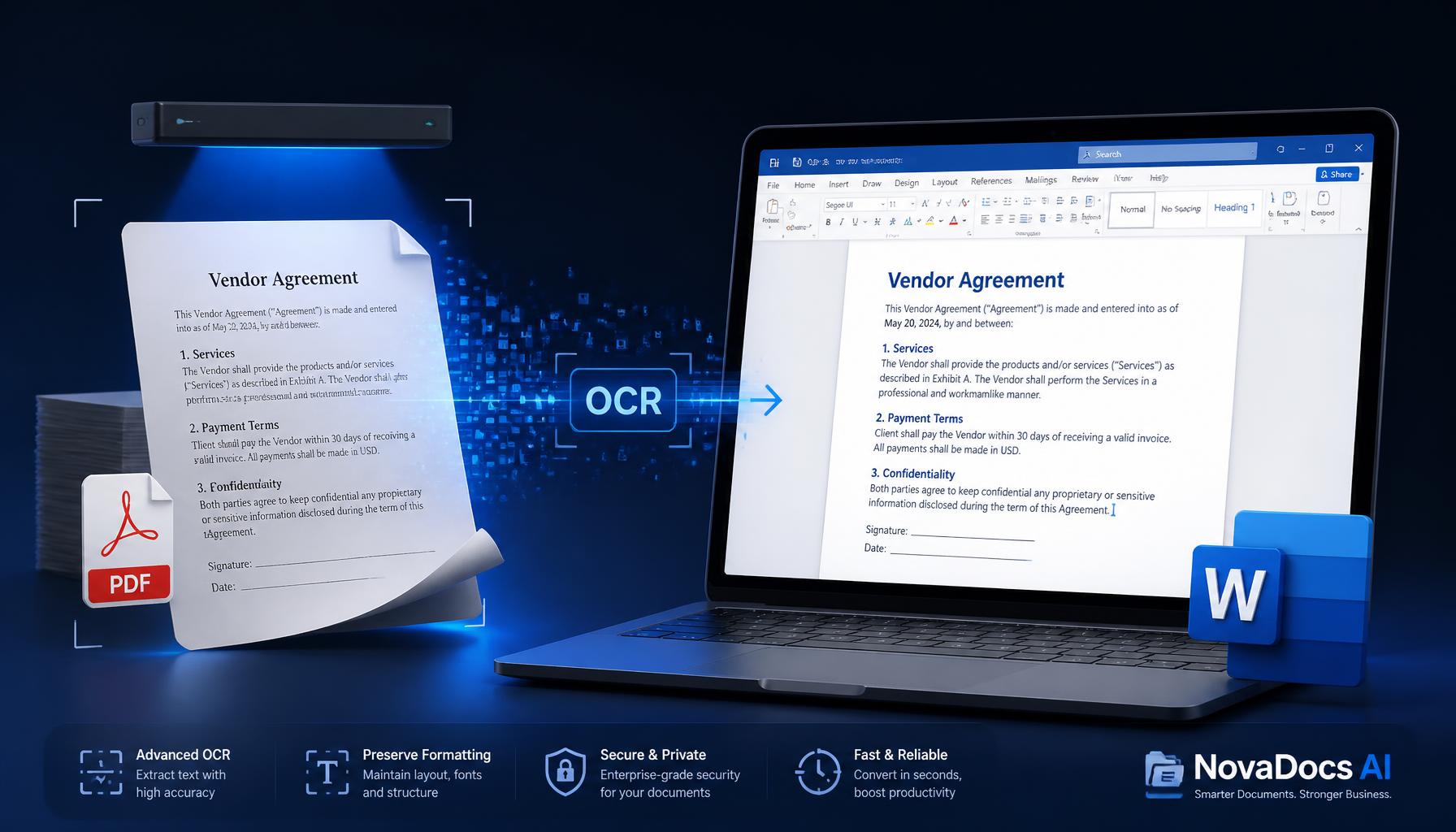
You have a scanned PDF. Maybe it is an old contract, a bank statement, a university form, or an office file that someone put through a printer and saved as a PDF. Now you need to copy the text out of it, edit a line, or hand it over as a Word document.
Here is the catch: a scanned PDF does not really contain text. It contains a picture of a page. Drop it into an ordinary PDF to Word free converter and you get a blank or broken document, because that kind of converter needs a selectable text layer and a scan simply does not have one.
This guide walks through how to convert a scanned PDF into an editable Word document — no software to install, no cost, and it works on a phone as well as a laptop.
When you actually need this
This comes up more often than people expect. An old assignment that has to be resubmitted. An office document where only the name and date change. A legal page that needs one correction. Retyping the whole thing is not a plan, it is a punishment.
That is where OCR online free saves the afternoon: upload the file, pull the text out, and make your small edits in Word.
- Editing university forms and certificates.
- Updating names, dates or amounts in office documents.
- Copying figures out of statements and invoices.
- Digitising pages from books, notes or handouts.
- Turning filled-in paper forms into typed documents.
Scanned PDF vs normal PDF — what is the difference?
There are two kinds of PDF. The first is created directly on a computer: it carries a text layer, you can select and search it, and it converts cleanly with PDF to Word free.
The second comes from a scanner or a phone camera. Every page is an image. Letters, numbers, tables and signatures are all just pixels arranged to look like writing.
So the conversion is really two jobs: read the text out of the image, then rebuild it as a document. OCR handles both.
- Normal PDF: text layer present, edits straight away.
- Scanned PDF: an image, so the text has to be recognised first.
- Standard converters: best for born-digital PDFs.
- Scanned files: run OCR first, then export to Word.
What OCR is and why it matters
OCR stands for Optical Character Recognition. It looks at an image, works out which shapes are characters, and turns them into real digital text. Your PDF is a photograph; OCR is the part that reads it.
Older OCR engines only coped with clean English print. Modern ones handle 100+ languages — Urdu, Sindhi, Arabic, Hindi and many more — along with mixed fonts, varied sizes and slightly imperfect scans.
The OCR tool on NovaDocs AI is built for scanned documents specifically. It does not just dump characters: it tries to preserve reading order, headings, paragraphs and tables, so what you get back is a readable document rather than a wall of text.
What happens without OCR
Convert a scan without OCR and the usual results are a blank Word file, stray symbols, missing chunks, or the page image pasted in as a picture. You end up typing it anyway — painful at two pages, unthinkable at twenty.
The professional route is simple: OCR first, then export to DOCX. Less time, fewer errors, and a file you can actually work in.
Step-by-step: scanned PDF to Word
No technical knowledge required. Open a browser and follow along.
Step 1: Open the OCR tool
Go to novadocsai.com/tools/ocr. It is free, there is nothing to install, and the mobile experience is identical.
Step 2: Upload your scanned PDF
Drag the file onto the upload area, or tap to browse. PDFs, JPGs, PNGs and phone photos all work. If the file is very large, shrink it first with Compress PDF online.
Step 3: Choose the language (or let it detect)
For Urdu, Sindhi or Arabic documents, picking the language explicitly lifts accuracy noticeably. For English, auto-detect is usually enough.
Step 4: Run the recognition
Start the process. The tool reads each page, identifies the text and rebuilds the structure. Small files finish in seconds; long scanned books take a couple of minutes.
Step 5: Review the result
You will see the extracted text on screen. Skim it before downloading — a few slips are normal on low-quality scans, and you can correct them right there.
Step 6: Download as DOCX
Export to Word and open it in Microsoft Word, Google Docs or LibreOffice. Your scan is now an editable document.
- Open the OCR tool.
- Upload the scanned PDF or photo.
- Select the language, or use auto-detect.
- Run the recognition.
- Review the extracted text.
- Download as DOCX and edit.
Why an editable copy is worth the two minutes
Once the scan becomes a Word file, the whole way you handle the document changes. Nothing has to be retyped, and everything becomes searchable.
- No manual typing, even for long documents.
- Find and search work across the whole file.
- Text can be edited with its formatting intact.
- Tables, fonts and spacing are adjustable in Word.
- You can re-export to PDF or any other format afterwards.
- Good enough output for office, university and legal use.
And there is no software to buy: OCR online free covers the job without a subscription, which matters for students, freelancers and small teams.
Common mistakes to avoid
Most disappointing OCR results come from a handful of avoidable habits. Fix these and your output improves dramatically.
Uploading a poor scan
Blurry, dark or crooked pages are hard to read. Scan at 300 DPI or higher. If you are using a phone, get good light and keep the page flat.
Picking the wrong language
Running an Urdu page in English mode extracts almost nothing. Choose the document's real language, or use auto-detect if you are unsure.
Expecting pixel-perfect formatting
OCR is excellent at text and decent at structure, but complex tables, logos and multi-column layouts still need a light cleanup. Roughly 90% of the work is done for you.
Uploading enormous files as-is
A 100 MB scan processes slowly in a browser. Run it through Compress PDF online first — the quality hit is small and the speed gain is large.
- Scan at 300 DPI or above.
- Set the correct document language.
- Budget a few minutes of cleanup for complex layouts.
- Compress oversized files before uploading.
- Always open the result in Word and verify it.
Pro tips for better accuracy
A few habits push results from usable to genuinely professional.
- Keep the paper straight — tilted lines are the single biggest accuracy killer.
- Avoid harsh shadows; even lighting gives better contrast than bright light.
- For handwriting, print letters rather than writing cursive.
- Use language detection for documents that mix two scripts.
- Review page by page when the document really matters.
If you make scanned PDFs editable regularly, standardise your setup — same scanner, same lighting, same export settings. Consistency alone raises accuracy.
FAQs: scanned PDF to Word conversion
Frequently Asked Questions
- Can I convert a scanned PDF to Word completely free?
- Yes. The OCR tool on NovaDocs AI is free: upload the scan, run recognition, download a DOCX. No watermark and no hidden charges.
- How accurate is OCR?
- Typically 85–99%, depending on scan quality. Clean typed pages are near-perfect; handwriting, low-resolution scans and dense layouts sit lower. Even at the low end it removes most of the typing.
- Does it work with Urdu, Sindhi or Arabic scans?
- Yes. Over 100 languages are supported, including right-to-left scripts, and the text comes back as Unicode so it displays correctly in Word and Google Docs.
- Is the original formatting preserved?
- Text and basic layout are preserved — headings, paragraphs and lists usually survive intact. Complex tables, logos and decorative fonts may need small manual adjustments.
- Do I need to install anything?
- No. Everything runs in the browser, including on Android and iOS, so there is no desktop software or app to install.
- What if my file is too large to upload?
- Reduce it first with Compress PDF online, or split the document and process it in sections.
Try it on your own file
Converting a scanned PDF into an editable Word document is no longer a specialist job. One upload, one recognition pass, one DOCX download — and the file is yours to edit.
Head to NovaDocs AI and run it on the scan sitting in your downloads folder. It is free, it is quick, and it works on your phone too.
Ready to try it yourself?
All the PDF & AI tools mentioned in this article — free to use.
Related articles

Get weekly PDF & AI tips
Join thousands of students and professionals getting productivity tips in their inbox.