How to Compress PDF Files Without Losing Quality — Complete 2026 Guide
Big PDFs bounce back from email, crawl on upload and eat storage. Here is how to shrink them properly in 2026 — keeping text sharp and images clean.
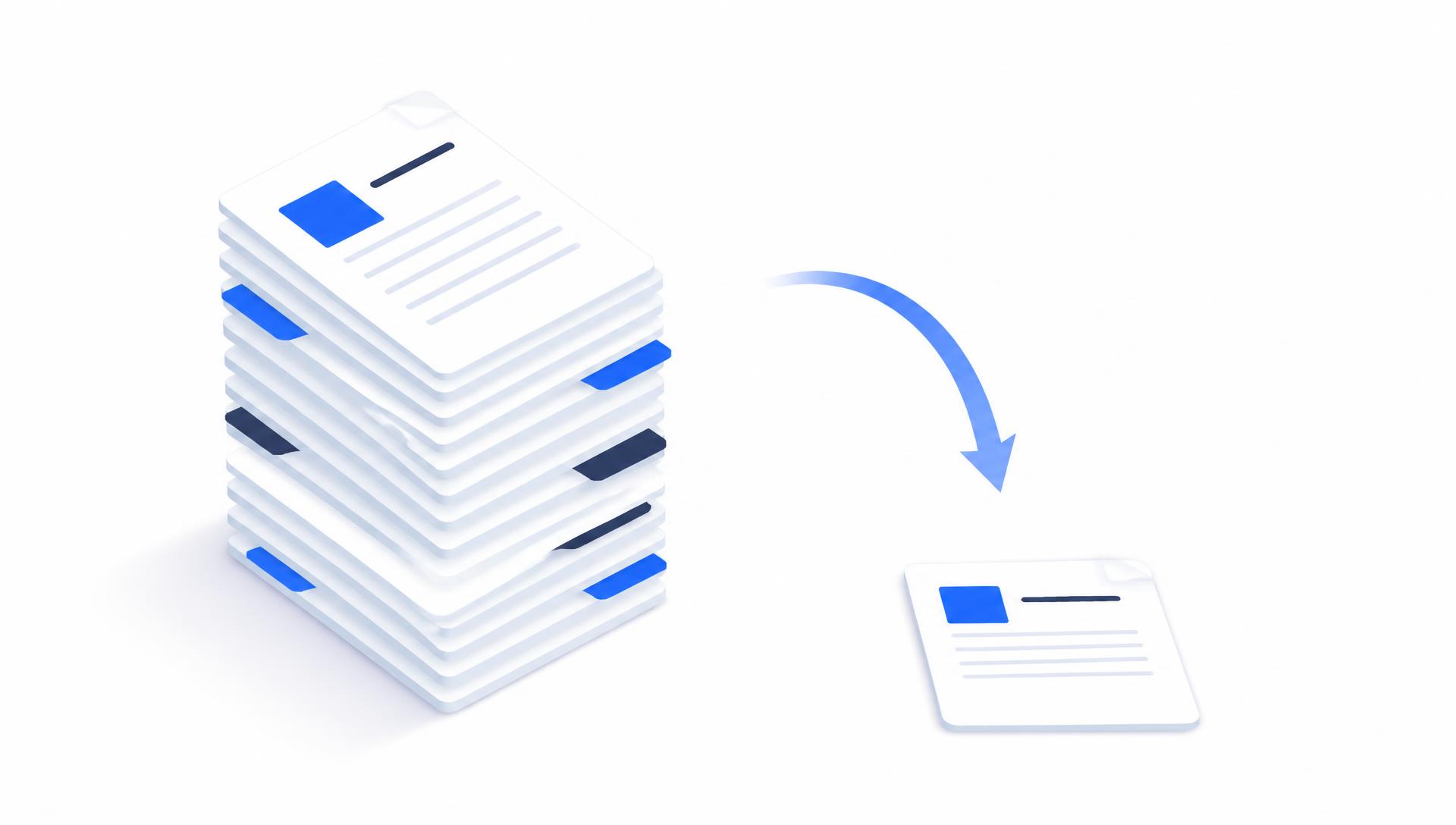
You finish a report, attach it to an email, hit send — and the message bounces back. The file is 34 MB and the mail server allows 25 MB. Or the university portal refuses your upload. Or your phone is out of space because a folder of scanned receipts has quietly grown to a gigabyte.
Large PDFs are one of those small daily annoyances that never really go away. The good news is that most oversized PDFs are oversized for boring, fixable reasons — and shrinking them does not have to turn your document into a blurry mess.
This guide explains, in plain language, why PDFs get big, how compression actually works, which settings to use for different kinds of documents, and how to compress a file in under a minute with the free Compress PDF tool at NovaDocs AI.
Why PDF files get so large in the first place
A PDF is a container. Text takes almost no space at all — a hundred pages of plain writing might be under a megabyte. Everything else is what makes files heavy.
- **Scanned pages.** A scanner saves each page as a full photograph, often at 600 DPI. Twenty scanned pages can easily be 40 MB.
- **Photos and screenshots.** Images pasted from a phone camera are frequently 4000 pixels wide, far more than any page needs.
- **Embedded fonts.** Every unusual font used in the document travels inside the file.
- **Slide decks exported to PDF.** Backgrounds, shadows and stock photography on every slide add up fast.
- **Editing history and metadata.** Files that have been through several tools carry leftover objects nobody can see.
Notice the pattern: the size almost always comes from pictures, not from words. That is exactly what good compression targets.
How PDF compression actually works
Compression does three different jobs, and understanding them is the difference between a clean result and a ruined one.
The first is **lossless cleanup**. Duplicate images are stored once instead of five times, unused objects are dropped, fonts are subset so only the characters you actually used are kept, and internal streams are repacked. Nothing visible changes at all. On documents that have been edited repeatedly, this alone can cut 20–40 percent.
The second is **image downsampling**. A photo that is 4000 pixels wide printed into a 6-inch space only needs about 900 pixels to look perfect on screen. Reducing the stored resolution to match how the image is displayed removes enormous amounts of data with no visible difference.
The third is **image re-encoding**, where photos are saved at a slightly lower JPEG quality. This is the only step that can genuinely reduce quality, so it should be applied gently — and it is the step people overdo when they drag a slider straight to "maximum compression".
Text itself is never blurred by a well-built compressor. If your text looks fuzzy after compression, what you actually compressed was a scanned image of text — a different problem, solved further down.
Step by step: compress a PDF in under a minute
1. Open the tool
Go to the Compress PDF tool. It runs in the browser, so there is nothing to install and it works the same on Windows, Mac, Android and iPhone. No account is needed.
2. Add your file
Drag the PDF into the upload area, or tap it to pick a file from your device. The original filename stays visible so you know exactly which document you are working on.
3. Choose a compression level
Start with the balanced or recommended setting. It applies the lossless cleanup, downsamples oversized images to a sensible screen resolution and leaves quality high. Only reach for the strongest level if the file still will not fit after that.
4. Run it and check the result
Compression takes a few seconds for a normal document and longer for heavy scans. When it finishes you will see the new size next to the old one.
5. Open the file before you send it
This is the step everyone skips. Download the result and scroll through it — especially any page with a logo, a chart, a signature or small print. If it looks right, send it. If a chart has gone soft, run the original again at a lighter setting instead of accepting the damaged copy.
Which setting to use for which document
| Document type | Best approach | What to watch |
|---|---|---|
| Text report or contract | Light / lossless cleanup | Usually already small; expect modest savings |
| Scanned pages | Balanced, plus OCR if you need searchable text | Small print and signatures |
| Slide deck exported to PDF | Balanced | Background photos and gradients |
| Photo portfolio or brochure | Light | Skin tones, gradients, fine detail |
| Receipts and forms for archiving | Strong | Amounts and reference numbers must stay readable |
| File for printing | Light only | Print needs far more resolution than screens |
A practical rule: the more the document will be *read on a screen*, the harder you can compress it. The more it will be *printed or examined closely*, the gentler you should be.
Common mistakes to avoid
- **Compressing the same file over and over.** Each pass re-encodes images that were already re-encoded. Always start from the original, not from yesterday's compressed copy.
- **Using maximum compression by default.** It is the setting most likely to soften logos and small text, and often saves only a little more than the balanced option.
- **Compressing before you finish editing.** Do your merging, page removal and signing first, then compress once at the end.
- **Compressing a print file.** A brochure heading to a printer needs its resolution. Keep a full-quality master and compress a separate copy for email.
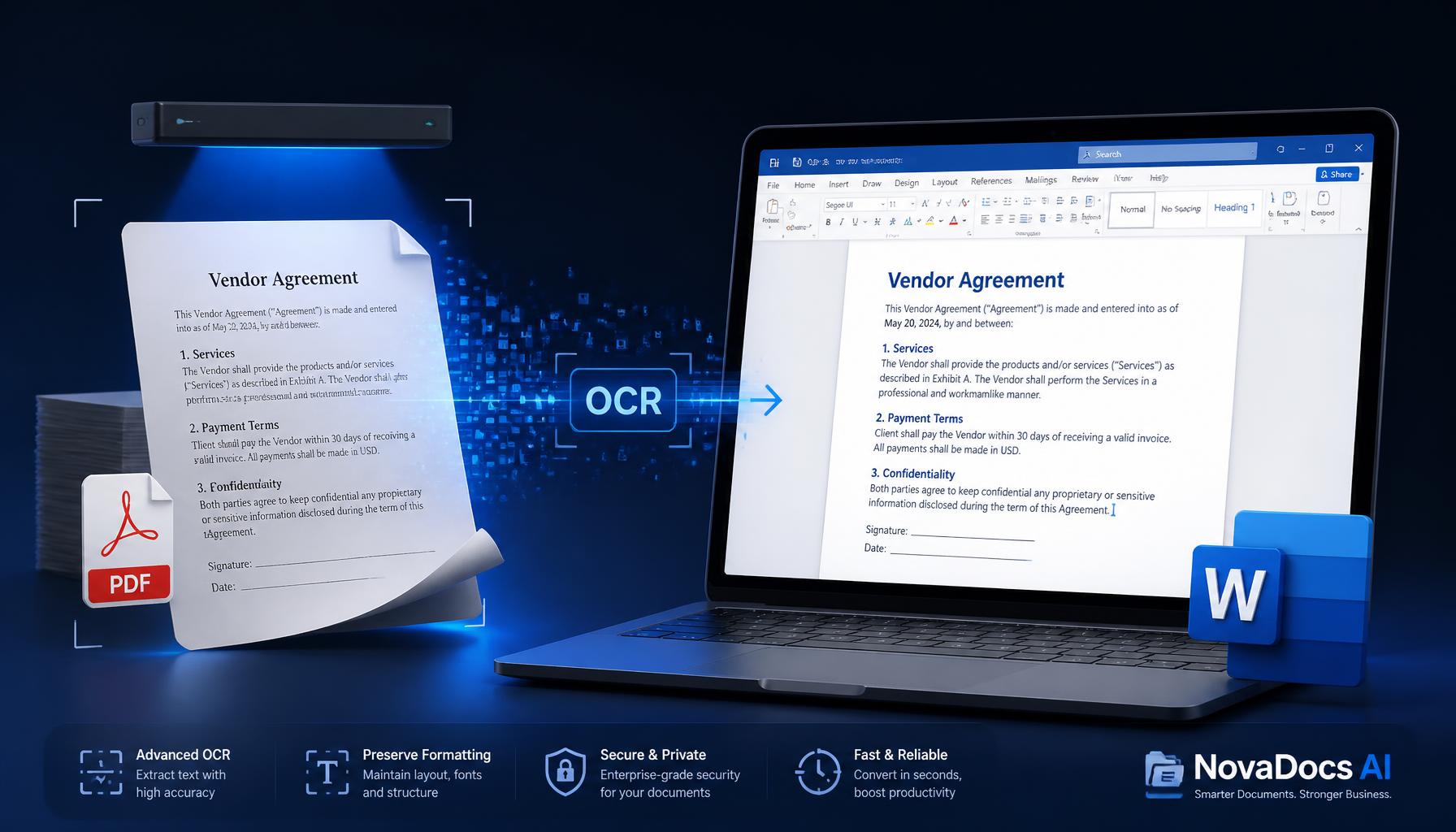
- **Assuming compression makes a scan searchable.** It does not. Run OCR if you need to select or search the text.
- **Not checking the output.** Thirty seconds of scrolling prevents sending a client an unreadable quotation.
When compression is not the right fix
Sometimes the file is not too big — it is too *long*. If you only need chapter three, extract those pages with Split PDF or Extract pages and send a 4-page document instead of a compressed 200-page one.
If you are combining several documents, merge them first with Merge PDF and compress the finished file once. Compressing each part separately and then merging gives a worse result for the same effort.
And if the document is a scan you also need to edit, convert it with PDF to Word after running OCR — a Word file of the same content is usually a fraction of the size of the scan.
Is it safe to compress PDFs online?
It depends entirely on the service. On NovaDocs AI, files travel over an encrypted HTTPS connection, are processed automatically, are deleted after processing and are never used to train AI models. No account, no email address and no payment details are required to compress a document.
For genuinely sensitive material — contracts, medical records, financial statements — it is still good practice to add a password to the finished file with Lock PDF before emailing it, whichever tool you used.
Frequently Asked Questions
- How much smaller will my PDF get?
- It depends on what is inside. Scanned documents and image-heavy decks often drop 60–90 percent. A text-only report may only shrink 10–20 percent because there was little waste to remove.
- Does compressing a PDF reduce quality?
- Lossless cleanup does not change anything visible. Image downsampling and re-encoding can, which is why the balanced setting is the safe default — it targets oversized images while keeping them sharp on screen.
- Can I compress a PDF on my phone?
- Yes. The Compress PDF tool runs in a mobile browser, so Android and iPhone work exactly like a desktop — no app install required.
- Is there a file size limit?
- Very large files simply take longer. If a huge scan struggles, split it into two parts, compress each and merge them again with Merge PDF.
- Will compression remove my password or signature?
- A visible signature image stays in place. Encrypted files should be unlocked with Unlock PDF first, then compressed, then re-protected with Lock PDF.
- Why is my PDF still big after compressing?
- Usually because it is mostly high-resolution scanned pages already stored efficiently, or it contains hundreds of pages. Try a stronger level, or send only the pages the recipient actually needs.
Send the file, not the excuse
Compressing a PDF properly is a one-minute habit: start from the original, use the balanced setting, check the output, and only go stronger if the size still will not fit. Do that and your documents stay sharp while attachments stop bouncing.
Try it now with the free Compress PDF tool at novadocsai.com — no signup, no watermark, and it works on any device.
Ready to try it yourself?
All the PDF & AI tools mentioned in this article — free to use.
Related articles
Get weekly PDF & AI tips
Join thousands of students and professionals getting productivity tips in their inbox.