How to Lock and Unlock a PDF with a Password (Free, Online)
Sending a bank statement, a contract or an ID scan as an open PDF is like mailing a letter without an envelope. Here is how to lock a PDF with a password in your browser — and how to unlock it again when you own the file.
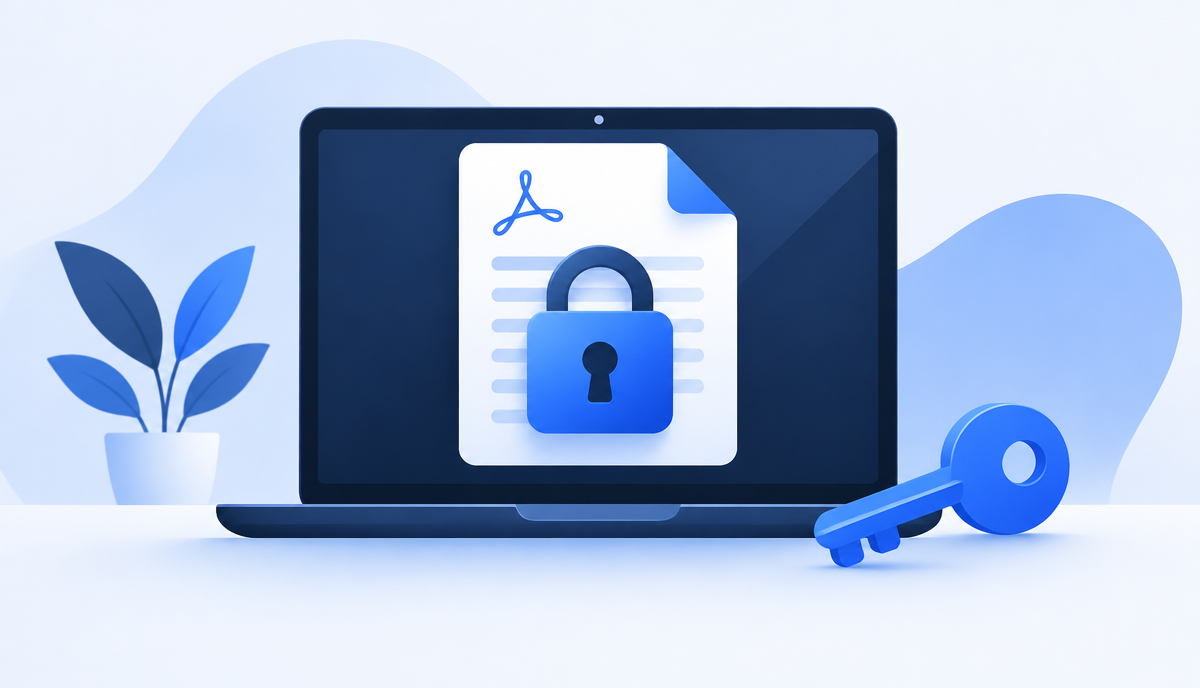
Some documents were never meant to travel openly. A salary slip, a signed contract, a scanned passport, a medical report — the moment you email one of these as an ordinary PDF, anyone who receives, forwards or intercepts it can read it. Password protection is the simplest fix: lock the file before it leaves your device, share the password separately, and the contents stay private even if the attachment ends up in the wrong inbox.
This guide shows how to lock a PDF with a password in your browser, how to unlock a PDF you own when you no longer need the protection, what actually makes a password strong, and the everyday situations where locking a file is worth the extra thirty seconds. Everything runs locally in your browser — no installation, no account, no watermark.
When a password-protected PDF is worth it
Not every document needs a lock. But for anything containing personal, financial or legal information, it should be the default rather than the exception:
- Identity documents — passports, national ID cards, driving licences, visa paperwork.
- Financial records — bank statements, payslips, tax returns, invoices with account details.
- Contracts and legal papers — anything signed, or anything you would not want a third party quoting.
- Medical and academic records — reports, transcripts and certificates that organisations increasingly accept digitally.
- Business files — proposals, price lists and internal reports shared outside your own company.
A password does two jobs at once. It keeps the contents private, and it signals to the recipient that the document is sensitive and should be handled carefully. Many employers, banks and government offices now ask for protected files by name for exactly this reason.
How to lock a PDF with a password
Using the Lock PDF tool on NovaDocs AI, the whole job takes under a minute:
- Upload the PDF. Drag the file into the upload area, or tap to browse on your phone. The document is processed in your browser.
- Choose a password and confirm it. Use at least four characters, though a longer phrase is far stronger — more on that below.
- Download the locked file. From this point the PDF cannot be opened by anyone without the password, in any reader, on any device.
Two habits make this genuinely secure rather than just technically secure. First, send the password through a different channel from the file — the PDF by email, the password by WhatsApp or SMS. An unlocked door next to its key protects nothing. Second, keep the original unprotected copy in a safe folder on your own device. If you forget the password later, you will be glad the clean version still exists.
What makes a PDF password strong
A locked PDF is only as strong as the password guarding it. Attackers do not guess passwords by hand — they try millions of common words, names and patterns per second. A few rules of thumb:
- Length beats cleverness. A four-word phrase like monsoon-ledger-orbit-seven is far stronger than a short jumble like P@55w0rd.
- Avoid anything guessable: names, birth years, phone numbers, the word password, or the file's own name.
- Do not reuse your email or banking password. If one leaks, everything else leaks with it.
- Share it, then forget it politely. Once the recipient confirms they opened the file, there is no reason for the password to sit in your chat history forever.
How to unlock a PDF you own
Passwords outlive their purpose more often than people expect. The bank statement from two years ago that you now need to upload somewhere, the contract you locked before emailing and now want to archive, the protected report a colleague sent with permission to edit — all of these open faster once the lock is removed.
The Unlock PDF tool removes password protection from files you own or have permission to modify. Upload the locked PDF, enter its current password, and download the unlocked copy. One important point: unlocking requires the existing password. This tool removes protection — it does not bypass it, and you should only ever unlock documents that are yours to open.
A sensible order for everyday work: unlock the file, do whatever you needed (edit, merge, print, upload), and re-lock it with Lock PDF before sending it anywhere again. The round trip takes a couple of minutes and keeps your documents protected in transit.
Locking works best alongside other tools
Password protection is usually the last step in a small chain of jobs. A few combinations that come up constantly:
| Job | Tool | Order |
|---|---|---|
| Signed contract to a client | Sign, then lock | [Sign PDF](/tools/sign) first so the signature is inside the protected file, then add the password. |
| Several sensitive scans | Merge, then lock | Combine them with [Merge PDF](/tools/merge), then protect the single finished file instead of five separate ones. |
| Locked file needs editing | Unlock, edit, re-lock | Remove the password, make your changes, and lock the updated version before sharing. |
| Statement too large to email | Compress, then lock | Shrink it with [Compress PDF](/tools/compress) first — compressing a locked file is awkward. |
The rule of thumb: lock last. Finish every edit, signature and merge first, then apply the password to the final version you actually intend to send.
Mistakes that defeat the purpose
- Emailing the file and the password together. Anyone who intercepts one gets both.
- Using the same password for every document. Use a different one per recipient at minimum.
- Locking a draft. Protect the final version — unlocking and re-locking repeatedly is how old passwords end up attached to the wrong files.
- Forgetting the password with no backup. Keep either the original unprotected copy or a record of the password somewhere safe.
- Unlocking files you do not own. Removing protection from someone else's document without permission can be unlawful; only unlock what is yours.
Frequently Asked Questions
- Is locking a PDF online free?
- Yes. The Lock PDF tool is free, needs no account, and adds no watermark to the protected file.
- Can a locked PDF be opened without the password?
- No. Standard PDF password protection encrypts the document, so no reader can display its contents without the correct password.
- Can I remove the password from a PDF later?
- Yes — use the Unlock PDF tool with the current password to produce an unprotected copy. You must know the password; the tool removes protection, it does not bypass it.
- Is it legal to unlock a PDF?
- Only when the file is yours or you have permission to modify it. Unlocking documents belonging to others without authorisation can be unlawful.
- Does locking a PDF reduce its quality?
- No. Password protection wraps the existing file without touching the pages, so text, images and fonts stay identical.
- Can I lock a PDF on my phone?
- Yes. The tool runs in the browser, so it works the same on Android and iOS as on a desktop — nothing to install.
- Should I sign a PDF before or after locking it?
- Before. Add your signature with Sign PDF, then lock the finished file so the signature is protected inside it.
- What if I forget the password to my own PDF?
- There is no recovery — the encryption is real. This is why keeping an unprotected master copy of important files matters.
Lock it before it leaves your device
Password protection is the cheapest insurance a document can have: thirty seconds of effort that keeps private information private no matter where the file ends up. Make locking the last step of every sensitive document you send, share the password on a separate channel, and keep an unlocked master copy for yourself.
Try it now: open the Lock PDF tool at novadocsai.com to protect a file, or Unlock PDF to remove a password from a document you own. Both are free, run in any browser, and need no signup.
Ready to try it yourself?
All the PDF & AI tools mentioned in this article — free to use.
Related articles
Get weekly PDF & AI tips
Join thousands of students and professionals getting productivity tips in their inbox.