How to Convert PDF to Word Online Free — Fastest Method in 2026
Stuck with a read-only PDF you need to edit? Here is the fastest free way to convert PDF to Word online in 2026 — with formatting, logos and tables intact.
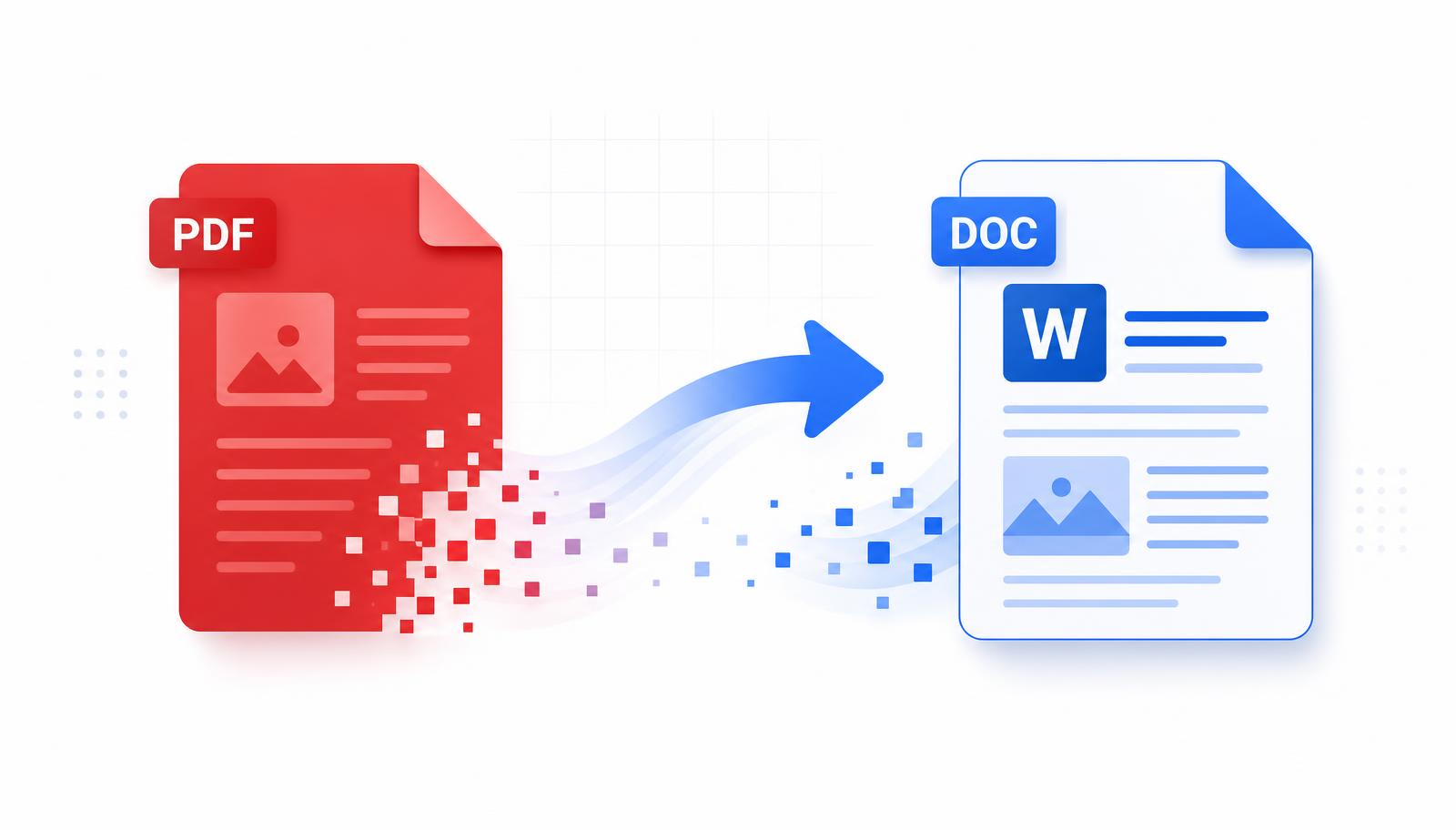
You have the file. You just cannot change a word of it.
Maybe it is a resume you saved as a PDF two years ago and the phone number is now wrong. Maybe a company asked for your application in Word format only. Maybe it is a contract with one clause that needs rewriting before Monday.
PDFs are brilliant at one thing: staying exactly the same everywhere. That is also the problem. A PDF is a finished document, not a working one, and the moment you need to edit it you are stuck.
The fix takes about ten seconds. This guide shows you how to convert PDF to Word online for free, what separates a good converter from a bad one, and the small mistakes that quietly ruin your formatting.
Why converting PDF to Word matters
A PDF locks layout. Word unlocks editing. Most real work needs both at different moments, and converting between them is what keeps a document alive.
You get real editability
Once your file is a .docx, every paragraph, heading, table and bullet becomes text you can click into and change. No retyping a five-page document because one date is wrong.
Formatting stays flexible
In Word you can restyle headings, adjust spacing, swap a logo, add a new section or change fonts across the whole file. In a PDF, all of that is baked in.
It saves genuine time
Retyping a 10-page report takes an hour or more, and every retyped page is a chance to introduce a typo. A good conversion takes seconds and keeps your original numbers exactly as written.
Some places simply require Word
Recruiters, universities and government portals often ask for .doc or .docx because their systems parse it. Having a free PDF to DOCX converter in your bookmarks means that requirement is never a problem.
Step by step: convert PDF to Word online free
Here is the full process using the NovaDocs AI PDF to Word converter. It runs in your browser, so there is nothing to download and it works the same on Windows, Mac, Android and iPhone.
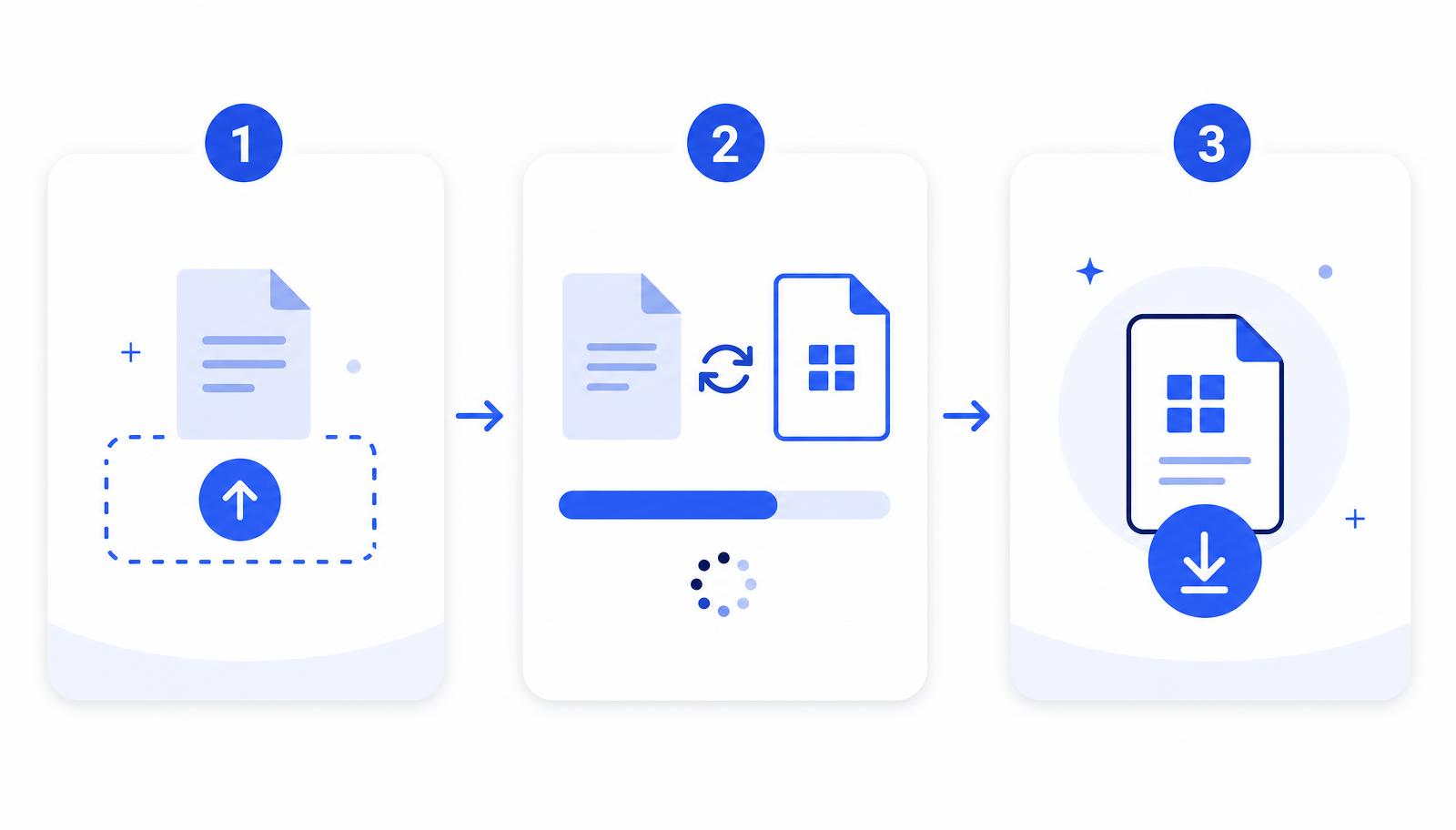
Step 1 — Open the tool
Go to novadocsai.com and open PDF to Word. No account, no email, no trial timer.
Step 2 — Upload your PDF
Drag the file into the upload area or tap it to browse. On a phone you can pick a file straight from Files, Drive or your downloads folder.
Step 3 — Let it convert
The converter reads your document structure — headings, paragraphs, tables, columns and images — and rebuilds it as a real Word document rather than a wall of plain text.
Step 4 — Download the .docx
Save the file and open it in Microsoft Word, Google Docs, LibreOffice or Pages. Everything is editable straight away.
Step 5 — Check the tricky parts
Give the document a quick scan: tables, headers, footers, page breaks and anything in two columns. These are the areas worth a glance before you send it on.
Step 6 — Save it back as a PDF when you are done
After editing, use Word to PDF to lock the layout again before sharing. Edit in Word, share as PDF — that is the whole cycle.
If your file is a scan or a photo of a page, the text is really an image. Run it through OCR first so the words become selectable, then convert.
What makes a good PDF to Word converter
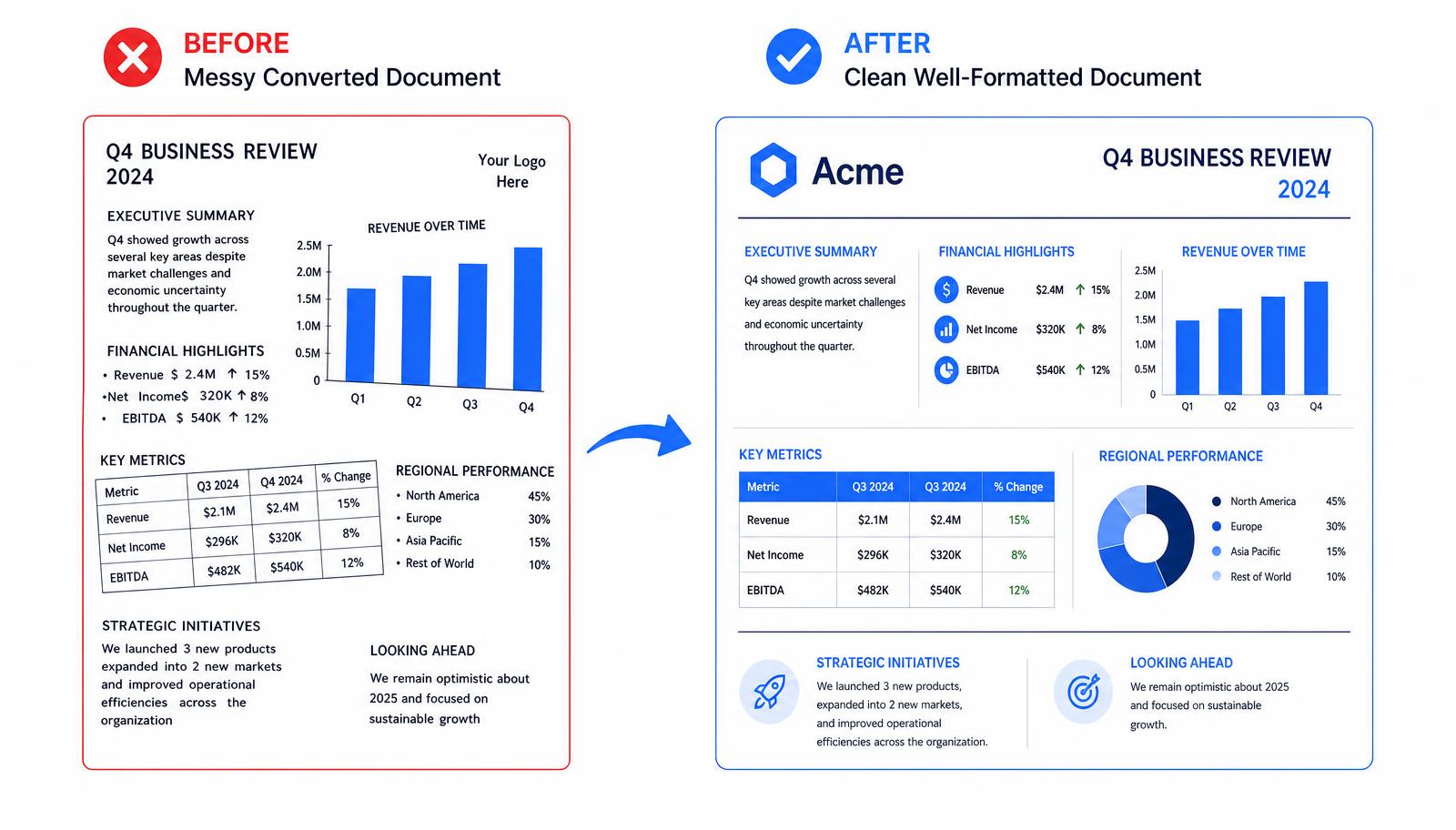
Every tool claims to convert PDFs. The difference shows up the moment your document has a table or a logo in it. Here is what actually matters when you convert PDF to Word online.
- Accuracy. The text should come across word for word, with no dropped characters or merged lines.
- Formatting preservation. Headings should still be headings, tables should still be tables, and images and logos should sit where they belong.
- Speed. A normal document should take seconds, not a queue and an email link.
- Privacy. Files should travel over an encrypted connection and be deleted after processing.
- No forced signup. You should not need an account to convert one file.
- No watermarks. A watermarked output is a demo, not a conversion.
- Works on mobile. Half of all document work now starts on a phone.
Free versus paid tools
| Free online converter | Paid desktop software | |
|---|---|---|
| Cost | Free | Monthly or yearly subscription |
| Install needed | No — runs in the browser | Yes |
| Speed for one file | Seconds | Seconds, after opening the app |
| Formatting quality | Very good for normal documents | Very good, plus fine manual control |
| Bulk / automated jobs | Limited | Better |
| Works on phone | Yes | Usually not |
For everyday documents — resumes, contracts, reports, assignments — a free PDF to DOCX converter does everything you need. Paid software earns its cost only when you are converting hundreds of files or need advanced redaction and pre-press control.
Common mistakes people make when converting PDFs
Most bad conversions are not the tool's fault. They come from one of these.
1. Converting a scan without OCR
A scanned contract is a picture of text. Convert it directly and you get a Word file with an image in it and nothing to edit. Run OCR first — that is the step almost everyone skips.
2. Using a random, unsafe website
Sites plastered with fake download buttons and pop-ups are not where your signed contract belongs. Check for HTTPS, a clear privacy policy and a stated file-deletion policy before you upload anything sensitive.
3. Expecting a design file to survive
A brochure built in InDesign with overlapping layers will never become a tidy Word document. Text-based documents convert beautifully; heavy graphic design does not.
4. Not checking the output
Sending a converted file straight on without opening it is how a broken table reaches a client. Ten seconds of checking prevents it.
5. Converting a huge file in one go
For a 300-page document, use Split PDF and convert in sections. It is faster and the results are cleaner. If the file is simply too large to upload, compress it first.
6. Forgetting the password
Protected PDFs cannot be converted while locked. If you own the file and know the password, remove it with Unlock PDF, convert, then re-protect the result with Lock PDF.
Frequently Asked Questions
- Is it really free to convert PDF to Word?
- Yes. The PDF to Word converter at NovaDocs AI is free, with no signup, no trial limit and no watermark on the output.
- Will my formatting stay the same?
- For normal text documents — resumes, reports, contracts, letters — headings, paragraphs, tables and images carry over well. Very complex magazine-style layouts may need small manual fixes.
- Can I convert a scanned PDF?
- Yes, but run OCR first so the scanned image becomes real text. Then convert to Word and everything will be editable.
- Is it safe to upload confidential files?
- Files are sent over an encrypted connection and deleted after processing, so they are not stored or shared. For highly sensitive documents, always read the privacy policy of any tool you use.
- Does it work on a phone?
- Yes. The converter is fully mobile-responsive, so you can convert PDF to Word online from an Android phone or iPhone browser with no app to install.
Convert your PDF in the next ten seconds
Editing a PDF is not hard any more. It just needs the right first step — turning it back into a Word file you can actually work in.
Open the free PDF to Word converter, drop in your file, and download an editable .docx before your coffee goes cold. Then edit freely and save it back to PDF when you are ready to send.
Ready to try it yourself?
All the PDF & AI tools mentioned in this article — free to use.
Related articles

Get weekly PDF & AI tips
Join thousands of students and professionals getting productivity tips in their inbox.