PDF Translation: Which Languages Are Most In-Demand in 2026?
Discover the most in-demand languages for PDF translation in 2026 and how AI-powered tools make document translation faster, free, and format-preserving.
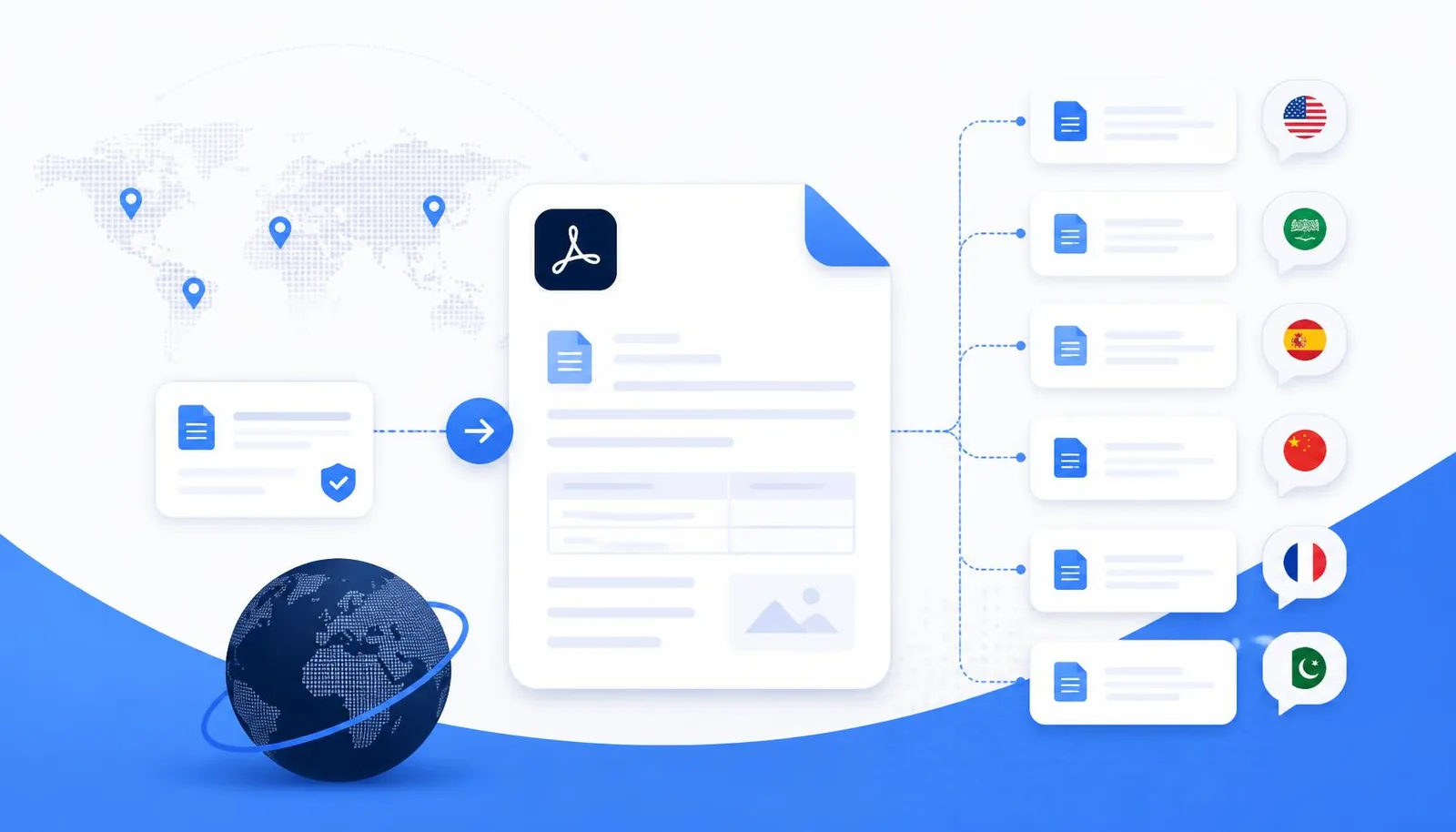
As remote work, international education, and global business keep growing, more people than ever need to translate documents — not just for personal use, but for job applications, university admissions, contracts, and everyday communication. Here's a look at which languages people are translating PDFs into most in 2026, and how AI has made the process instant.
Why Document Translation Demand Is Rising
Global remote work means employees are now signing contracts in languages they don't speak. Students are applying to universities abroad and need transcripts translated. Freelancers are working with clients across different countries. In almost every case, the document needs to stay accurate — not just roughly translated, but properly formatted and reliable.
PDFs complicate this because they are designed to preserve layout. A simple copy-paste into a translator often breaks tables, headings, and images. That's why dedicated PDF translation tools have become essential for anyone working across languages.
For scanned or image PDFs, use OCR to extract readable text before translation, and check the recognised words against the original pages.
Most In-Demand Languages for PDF Translation
Based on common use cases, these are the languages most frequently requested for document translation:
- **English** — the most common target language for international business and academic documents
- **Arabic** — widely needed for Gulf-region business, legal, and government documents
- **Spanish** — high demand due to Latin American and US business communication
- **Chinese (Mandarin)** — essential for trade, manufacturing, and business partnerships
- **French** — commonly needed for European business and African markets
- **Urdu** — increasingly needed for local business, legal, and academic documents in Pakistan
These six languages cover the majority of real-world translation needs, but modern AI translators also handle dozens of others — from German and Portuguese to Hindi, Bengali, and Sindhi.
How AI Makes PDF Translation Faster Than Ever
Traditional document translation could take days and often required a professional translator, especially for longer files. AI-powered translation tools have changed this completely. With NovaDocs AI's AI PDF Translator, you can:
- Upload any PDF and select your target language
- Preserve the original formatting, layout, and structure
- Get an accurate translation in seconds instead of days
- Translate documents for free, without hiring a professional translator for routine documents
The AI reads the document as a structured file, not just a block of text. That means headings stay headings, tables stay tables, and paragraphs keep their original spacing — so the translated document looks as professional as the original.
If you need to edit the translated document, convert the translated PDF to Word so you can adjust its wording and formatting. For a quick overview, summarize the translated document and check its key points against the full translation.
When You Should Still Use a Human Translator
While AI translation is excellent for everyday documents — emails, general contracts, academic papers, and business communication — highly sensitive legal documents (like court filings or notarized paperwork) may still require a certified human translator for legal validity in certain countries.
For everything else, AI translation is fast, accurate, and cost-effective. It is ideal when you need to understand a document quickly, share it with an international audience, or prepare a draft before professional review.
Step-by-Step: Translating a PDF the Right Way
A good translation starts before you upload anything. Follow this sequence to avoid the two most common failures — garbled scans and broken layouts:
- Check whether your PDF has real text. Try selecting a sentence with your cursor. If you cannot highlight anything, the file is a scan — run it through OCR first so the translator has real text to work with.
- Open the AI PDF Translator and upload your file.
- Choose the target language. If the document is long, translate it in one pass rather than page by page — the AI keeps terminology more consistent across a whole document.
- Review the translated file before sharing it: check headings, tables, names, numbers and any right-to-left alignment (see the checklist below).
- Download the result. If you need to make edits, convert the translated PDF to Word, adjust the wording, and export back to PDF.
If the translated file is too large to email, run it through Compress PDF once — after translation, not before, so you only compress the final version.
Worked Examples for Popular Language Pairs
English to Arabic (or Urdu)
Right-to-left languages are where layout matters most. A contract translated from English to Arabic needs mirrored alignment, and tables should read right-to-left. After translating, open the file and confirm that headings align correctly, bullet lists sit on the right, and no English fragments remain inside otherwise Arabic paragraphs. Names, dates and invoice numbers usually stay in their original form — verify they were not accidentally transliterated.
English to Spanish (or French)
Romance languages typically run longer than English — often noticeably so. A one-page English flyer can overflow its text boxes in Spanish. After translation, scan for truncated sentences, overlapping text and tables that spill past their columns. If the layout broke, convert to Word, shorten the affected sentences, and export back to PDF.
Urdu to English
Academic transcripts and certificates from Pakistan are a classic case. The risk points are proper nouns: names of people, institutions and cities can be spelled several valid ways in English. Compare every name in the translation against the original document character by character, and make sure grades, roll numbers and dates match exactly. If you want to double-check what a section says, chat with the translated PDF and ask it to quote the relevant lines.
English to Chinese
Business proposals and product documentation often move between English and Chinese. Chinese text is usually more compact than English, so layout rarely overflows — but font rendering matters. Open the translated file and confirm every character displays correctly rather than showing as empty boxes, and check that product names and model numbers stayed in their original form where they should.
French (or Spanish) to English
Academic and legal documents coming into English deserve extra attention to formal register. Check that headings and section titles sound natural rather than literal, and that dates were converted sensibly — 05/06/2026 means different things in different countries, so compare every date against the original page.
What to Check After Translation
AI translation is fast and accurate for everyday documents, but a two-minute review catches the issues that matter. Work through this checklist before sending the file to anyone:
- Layout and structure — headings still look like headings, tables keep their columns, lists keep their bullets, and nothing overflows the page.
- Names and proper nouns — people, companies, places and product names are spelled the way you expect, consistently, throughout the document.
- Numbers, dates and currencies — amounts, date formats and decimal separators match the original. A swapped decimal point in an invoice is a costly mistake.
- Terminology — key terms (legal, medical, technical) are translated the same way every time they appear. If a term has an established translation in your field, search the document for it.
- Untranslated fragments — scan for leftover sentences in the source language, especially in headers, footers and image captions.
For a fast sanity check on a long document, summarize the translated file and compare the summary's key points with what you know the original says. If the summary matches your expectations, the translation almost certainly captured the meaning.
Practical Tips for Long or Difficult Documents
A few habits make a noticeable difference on bigger jobs:
- Translate the whole document in one pass rather than section by section, so terminology stays consistent from the first page to the last.
- If you only need one chapter of a long PDF, extract those pages first and translate just what you need — it is faster and easier to review.
- Keep the original file open beside the translation while reviewing, and check anything that would be expensive to get wrong: figures, deadlines, obligations, names.
- For documents you will translate repeatedly (reports, invoices, certificates), keep a short list of your preferred translations for key terms and check the output against it each time.
- If the source file is a photo taken with a phone, retake it flat, in good light, before running OCR — five seconds of retaking saves minutes of correcting misread text.
Translate the Whole Document — or Just Understand It?
Not every foreign-language PDF needs a full translation. If you only need to know what a document says — a supplier's brochure, a research paper, a news report — summarize it or chat with it and ask your questions directly. You get the meaning in seconds without producing a second document at all. Save a full layout-preserving translation for files you need to share, submit or publish in another language.
Common Translation Mistakes to Avoid
- Copy-pasting PDF text into a generic translator. This strips all formatting — tables collapse, headings vanish and you get back a wall of plain text. Use a tool that translates the PDF as a structured file.
- Translating a scan without OCR. If the PDF is really a photo of pages, a translator sees nothing. Run OCR first, check the recognized text, then translate.
- Trusting numbers blindly. Always compare figures, dates and totals against the original — this is the single most important check for contracts, invoices and transcripts.
- Assuming AI output is legally certified. Routine business and personal documents are fine; court filings and notarized paperwork may need a certified human translator depending on your country.
- Translating a low-quality scan. Blurry photos and skewed pages produce OCR errors that the translation then amplifies. Re-scan or re-photograph the document in good light first.
One last habit ties everything together: keep both versions. Save the original and the translation side by side, so anyone reviewing the document later — a colleague, a client, an admissions office — can check any line against the source. It costs nothing and resolves most questions before they are asked.
Frequently Asked Questions
Frequently Asked Questions
- Is NovaDocs AI's translation tool free to use?
- Yes, translating PDFs with NovaDocs AI is completely free with no sign-up required.
- Does it preserve the original document formatting?
- Yes, the tool is designed to keep the layout and structure intact during translation.
- How many languages does it support?
- It supports a wide range of major world languages, including English, Arabic, Spanish, Chinese, French, and Urdu, among others.
- Can I use it for official documents?
- For routine business and personal use, yes. For legally certified documents, we recommend checking with a certified translator depending on your country's requirements.
- Do I need to install software?
- No. NovaDocs AI runs entirely in your browser, so you can translate PDFs from any device without installing anything.
- Can I translate a scanned PDF?
- Yes, but run it through the OCR tool first so the scan becomes real text. Check the recognized text for errors, then translate — translating a scan directly without OCR will not work.
- Will the translation keep my tables and images?
- The translator works on the PDF as a structured file, so headings, tables, lists and images stay in place. Always open the result and check the layout, especially when translating into right-to-left languages like Arabic or Urdu.
- How do I check a translation if I don't speak the target language?
- Summarize the translated document and compare the key points with the original, or chat with the translated PDF and ask it to quote specific sections. For names, numbers and dates, compare them against the original directly — they should match exactly.
Translate Your Documents in Seconds
Whether it's a contract, transcript, or business proposal, get an accurate translation without the wait.
Try NovaDocs AI's free AI PDF Translator and convert your documents into the language you need — while keeping the original formatting intact.
Ready to try it yourself?
All the PDF & AI tools mentioned in this article — free to use.
Related articles

Get weekly PDF & AI tips
Join thousands of students and professionals getting productivity tips in their inbox.