How to Sign a PDF Online Free (No Printing, No Scanner)
Print, sign, scan, resend — the slowest loop in office life. Here's how to sign a PDF online free in your browser, keep the file looking professional, and fill in the rest of the form while you're there.
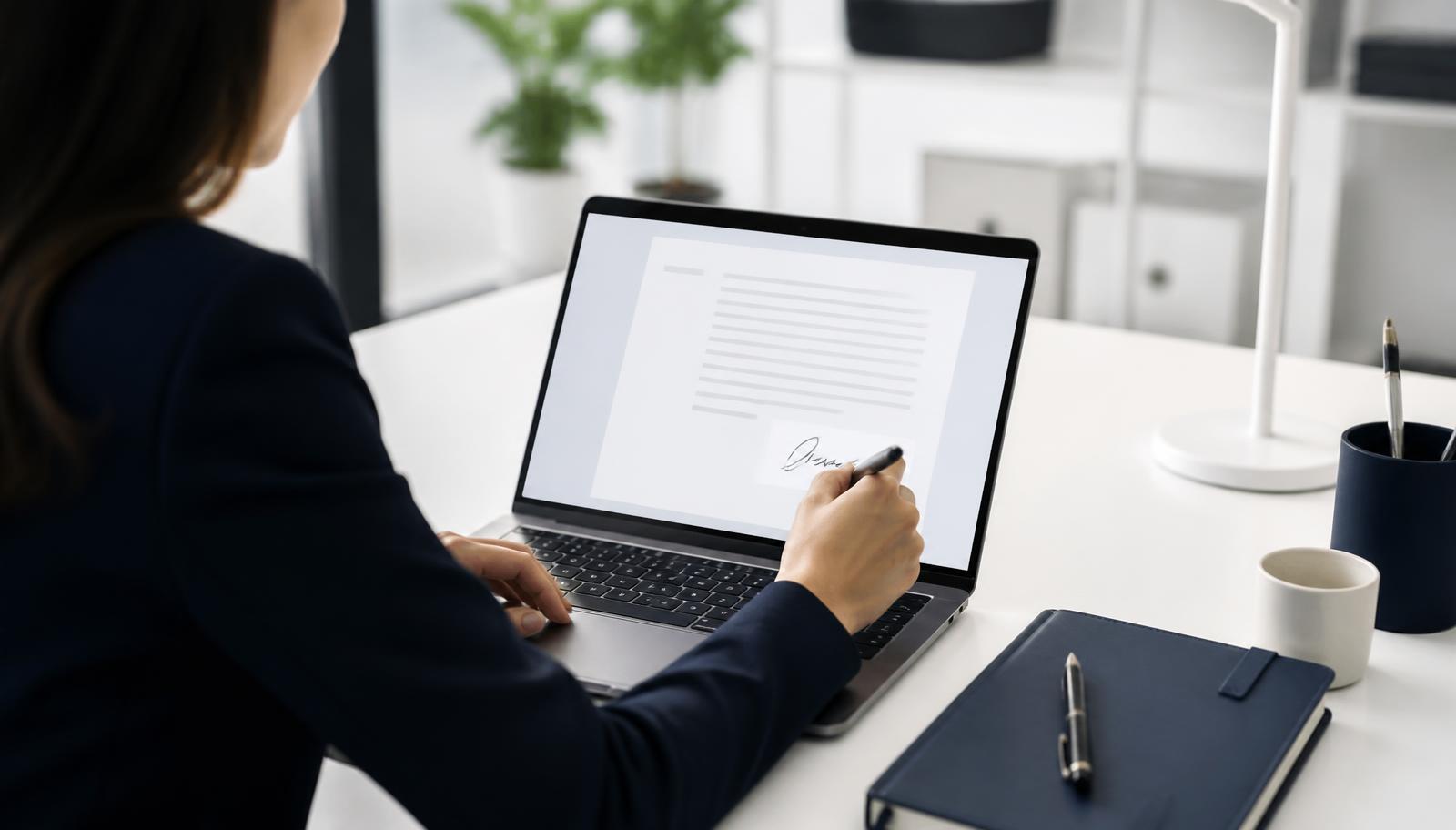
You get the contract at 4:55pm. It needs your signature before the end of the day. So begins the worst loop in office life: print the file, sign it with a pen, hunt for a scanner, take a crooked phone photo instead, and email back a grey, tilted document that looks like it survived a flood. There is a much faster way. You can sign a PDF online free, straight from your browser, in about the time it takes to find a working printer — and the result is a crisp, professional file rather than a photo of a piece of paper.
This guide covers how electronic signatures actually work, how to add one to any document in a few clicks, how to fill in the rest of a PDF form at the same time, and what to watch out for when the paperwork really matters. No software to install, no subscription, no account.
Why printing and scanning is costing you more than time
The print-sign-scan routine has quietly become the biggest bottleneck in otherwise digital workflows. It is not just the ten minutes. A scanned signature page usually arrives as a low-resolution image wrapped in a PDF, which means:
- The text is no longer selectable or searchable, so nobody can copy a clause or run a keyword search through the agreement later.
- File sizes balloon — a five-page scan can be larger than a hundred-page text PDF, which is a problem when the recipient's inbox rejects attachments over 10 MB.
- Quality drops with every round trip. Print, scan, re-print, re-scan and by version three the small print genuinely is unreadable.
- It fails completely when you are travelling, working from home, or on a phone — the exact moments when urgent documents tend to appear.
An electronic signature skips all of it. The original PDF stays a proper digital document; your signature is placed on top as part of the page, and the file that leaves your computer looks identical to the one that arrived, plus your name in your own handwriting.
How to sign a PDF online free in four steps
The process is the same whether you are approving an invoice, returning an NDA, or signing a rental agreement. Using the Sign PDF tool on NovaDocs AI, it looks like this:
- Upload the document. Drag the PDF into the upload area, or tap to browse if you are on a phone. The file opens straight in the browser — nothing to install.
- Create your signature. Draw it with a mouse, trackpad or fingertip, or type your name and pick a handwriting style. Drawing on a phone screen with your finger gives the most natural-looking result, and you can redo it as many times as you like until it looks right.
- Place it on the page. Drag the signature to the signature line, resize it so it sits neatly within the space, and add the date or your initials on other pages if the document asks for them.
- Download and send. Save the signed PDF and email it back. The layout, fonts and images of the original are untouched — only your signature has been added.
Two small habits make signed documents look far more professional. First, size your signature to roughly the height of the printed line beneath it; oversized signatures are the clearest giveaway of a rushed job. Second, keep one signature image you are happy with saved on your device, so every document you return looks consistent.
Filling in the form fields, not just the signature line
Most documents that need a signature also need a dozen other things: a date, an address, a tax number, a set of ticked boxes. Typing those into a PDF is a separate headache, especially when the form was never built with fillable fields — which is true of most forms that arrive by email.
The Fill PDF Forms tool handles both cases. If the file has real form fields, you can click into them and type. If it is a flat scan or an export with no fields at all, you can still add text anywhere on the page, position it on the line, and check boxes with a mark. The output is a normal PDF that opens correctly in every reader — not an image, and not a Word file that will reflow on someone else's machine.
A practical order of operations for a typical contract: fill every field first, read the completed document once from top to bottom, and only then add your signature. Signing first and editing afterwards is how people accidentally return an agreement with the wrong start date on it.
Are electronic signatures legally valid?
For the vast majority of everyday business documents, yes. Electronic signatures are recognised under the ESIGN Act and UETA in the United States, eIDAS in the European Union and the UK, and equivalent legislation in Canada, Australia, India and most other major markets. What these laws generally require is that the signer intended to sign, consented to doing business electronically, and that the signed record can be retained and reproduced.
A drawn or typed signature placed on a PDF meets that bar for ordinary commercial paperwork: NDAs, freelance contracts, purchase orders, consent forms, internal approvals, and most client agreements.
There are exceptions worth knowing. Wills and testamentary trusts, certain family-law documents, some property transfers, and anything a court or government body specifically requires to be notarised or wet-signed will still need a traditional signature or a qualified digital certificate. Certain regulated industries also ask for a cryptographic digital signature — a different thing from a drawn one, tied to an identity certificate that proves who signed and that the file has not been altered since. If a counterparty specifies a 'qualified' or 'certificate-based' signature, take that literally.
When in doubt, ask the person requesting the document what standard they need. It takes one email and saves a rejected submission.
Keeping signed documents secure
Signature pages tend to contain exactly the information you least want floating around: your name, address, bank details, sometimes an ID number. A few sensible precautions:
- Prefer tools that process files in the browser or delete uploads shortly after processing, rather than services that keep a permanent copy in an account you will forget about.
- Avoid signing on shared or public computers. If you must, download the signed file, send it, and clear the downloads folder afterwards.
- Add a password to particularly sensitive signed documents before emailing them, and send the password through a different channel. The Lock PDF tool does this in a couple of clicks.
- Keep your own copy of every signed agreement in one folder. Merging the signature page back with the full contract using a Merge PDF tool keeps each agreement as a single, complete file rather than three loose attachments.
- If the finished file is too large to email, compress it rather than degrading it — recompressing a scan repeatedly is what makes old contracts unreadable.
Signing on a phone, and other real-world situations
Phones are, slightly unexpectedly, the best place to sign a PDF. A fingertip on a touchscreen produces a far more natural signature than a mouse ever will, and the file is usually already sitting in your email app. Because NovaDocs AI runs in the browser, you can open the attachment, sign it and send it back without installing anything — useful when you are away from your desk and the deadline is not.
Some other situations that come up often:
| Situation | What to do |
|---|---|
| The document arrived as a Word file | Convert it to PDF first so your signature and the layout are locked in, then sign the PDF. |
| It is a scanned paper form with no digital text | Add your signature and typed answers on top of the scan; run OCR first if you also need the text to be searchable. |
| Two people need to sign | Sign your part, send the signed PDF onward, and let the other party add theirs to the same file. |
| Only one page of a long contract needs signing | Extract that page, sign it, then merge it back so the final document stays intact. |
| The contract is in another language | Translate a copy for your own understanding, but sign the original-language version — that is the binding one. |
Frequently Asked Questions
- How do I sign a PDF without Adobe Acrobat?
- You do not need Acrobat. Any browser-based signing tool, including the free Sign PDF tool on NovaDocs AI, lets you draw or type a signature, place it on the page and download the signed file — no installation and no subscription.
- Is it safe to sign a PDF online?
- It is, provided you choose a tool that does not retain your documents. Check that files are deleted shortly after processing, avoid signing on public computers, and password-protect anything containing financial or identity details before you email it.
- Can I sign a PDF on my iPhone or Android phone?
- Yes. Open the PDF in a browser-based signing tool and draw your signature with a fingertip — it usually looks better than a mouse-drawn one. Nothing needs to be installed on either platform.
- What is the difference between an electronic signature and a digital signature?
- An electronic signature is the visible mark of intent — your drawn or typed name on the page — and is valid for most business documents. A digital signature is a cryptographic certificate that also proves the signer's identity and that the file has not been changed since signing. Certain regulated or notarised documents specifically require the latter.
- Will signing change how my PDF looks?
- No. Your signature is added as a layer on the existing page, so fonts, images, tables and page numbering stay exactly as they were in the original document.
Get the document signed and off your desk
Signing a document should take a minute, not an afternoon of hunting for printer paper. Once you have signed a PDF online free a couple of times, the old routine starts to look faintly absurd — and your returned contracts look considerably better for it.
Try it on the next agreement that lands in your inbox: open the Sign PDF tool at novadocsai.com, complete the rest of the paperwork with Fill PDF Forms, and send it back before the sender has finished writing their follow-up email. Both tools are free, work in any browser, and need no account.
Ready to try it yourself?
All the PDF & AI tools mentioned in this article — free to use.
Related articles

Get weekly PDF & AI tips
Join thousands of students and professionals getting productivity tips in their inbox.