OCR Explained: How to Turn Scanned PDFs into Editable Text (2026 Guide)
Learn how OCR works and how to turn scanned PDFs and images into editable, searchable text in seconds using NovaDocs AI's free OCR tool.
You've probably run into this before: someone sends you a scanned document — maybe an old contract, a printed form, or a photo of a page from a book — and you need to edit or copy text from it. But it's just an image. You can't select the text, can't search it, can't copy-paste a single word. That's where OCR comes in.
What Is OCR?
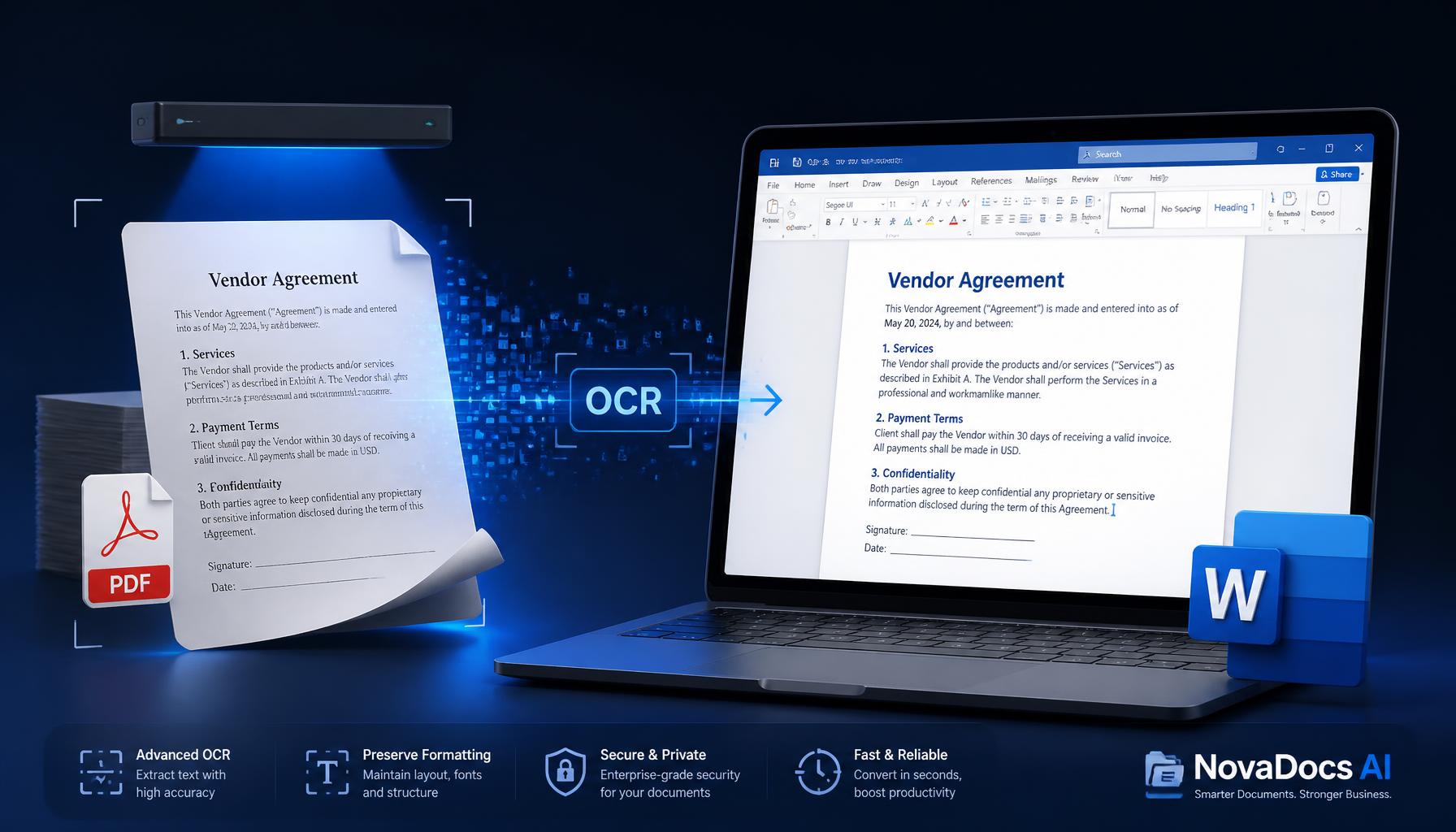
OCR stands for **Optical Character Recognition** — a technology that reads text inside an image or scanned document and converts it into real, selectable, editable text. Instead of a flat picture of words, you get an actual text file you can copy, search, and edit like any normal document.
This matters for:
- Scanned contracts and legal papers
- Old printed documents that need digitizing
- Photos of textbook pages or handwritten notes
- Government forms received as scanned images
- ID cards, receipts, and invoices
Why OCR Saves So Much Time
Before OCR tools existed, converting a scanned document into usable text meant **manually retyping** every single word — a painfully slow process, especially for multi-page files. With AI-powered OCR, that same document can be converted in seconds, with high accuracy, even if the scan quality isn't perfect.
Step-by-Step: How to Use NovaDocs AI's OCR Tool
Here's how to convert any scanned PDF or image into editable text:
Step 1: Upload Your File
Go to NovaDocs AI's OCR tool and upload your scanned PDF or image file.
Step 2: Let the AI Scan the Text
The tool automatically detects and reads all the text in your document, including different fonts and layouts.
Step 3: Review the Extracted Text
Check the converted text for accuracy — OCR is highly accurate, but it's always good practice to review, especially for documents with unusual fonts or poor scan quality.
Step 4: Download or Copy
Download the result as an editable Word document or PDF, or simply copy the text directly to use wherever you need it.
Common Use Cases for OCR
- **Students** digitizing handwritten or printed notes for easier studying
- **Businesses** converting old paper records into searchable digital files
- **Freelancers** extracting text from client-provided scanned documents
- **Anyone** who needs to edit a document that only exists as an image or scan
Tips for Best OCR Accuracy
Follow these tips to get the most accurate OCR results from your scanned documents:
- **Use clear, well-lit scans** — blurry or dark images reduce accuracy
- **Avoid extreme angles** — try to scan or photograph documents straight-on
- **Higher resolution is better** — a clearer image means more accurate text recognition
- **Review handwritten text carefully** — OCR works best on printed text; handwriting recognition is improving but not always perfect
Frequently Asked Questions
Frequently Asked Questions
- Is NovaDocs AI's OCR tool free to use?
- Yes, it's completely free with no sign-up required.
- Can it read handwritten text?
- It can recognize some handwriting, but it works most accurately with printed or typed text.
- What file formats does it support?
- You can upload scanned PDFs as well as common image formats like JPG and PNG.
- Will it preserve the original formatting?
- The tool does its best to maintain paragraph structure and layout, though some manual adjustment may be needed for complex documents.
- Is my uploaded document kept private?
- Yes, documents are processed securely and are not stored or shared without your permission.
Turn Your Scanned Documents Into Editable Text Today
Stop retyping documents by hand. Extract accurate, editable text from any scanned file in seconds.
Try the Free OCR Tool Now and convert your scanned PDFs and images into text you can actually use.
Ready to try it yourself?
All the PDF & AI tools mentioned in this article — free to use.
Related articles
Get weekly PDF & AI tips
Join thousands of students and professionals getting productivity tips in their inbox.